Model Import
One-click import 3D modelsGeneral Description
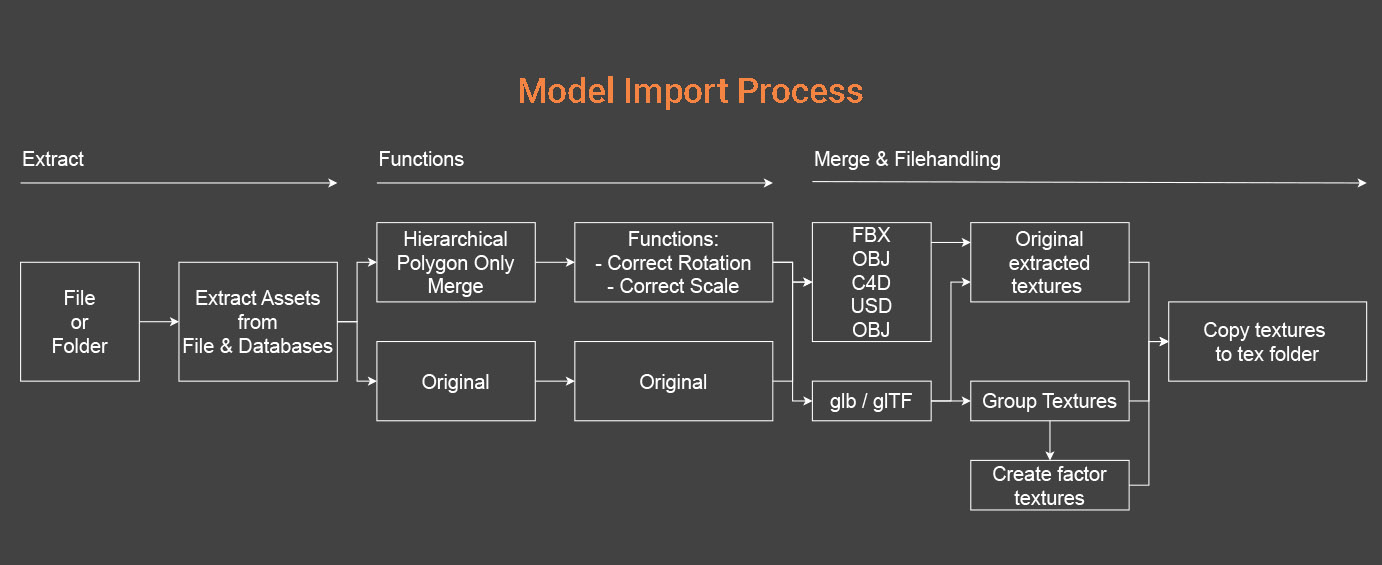
Model Import automates the process of bringing 3D models into Cinema 4D. By selecting a file or folder, all contained assets are automatically merged into the active project. The import routine corrects common defects such as rotation and scale offsets, ensuring consistent alignment across models. Both embedded textures and database-referenced image paths are automatically copied into the project’s tex folder, creating a clean and organized import structure ready for further processing within the Baked Pixels pipeline.
Supported input formats:
.obj, .fbx, .glb, .gltf, .stl, .c4d, .usd, .usdc, .usdz, .3ds, .step, .stp, .catpart
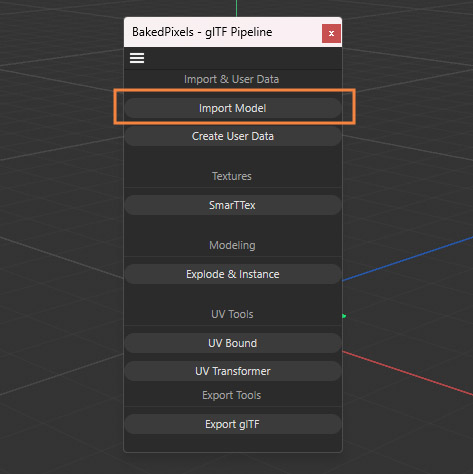
Import Mode
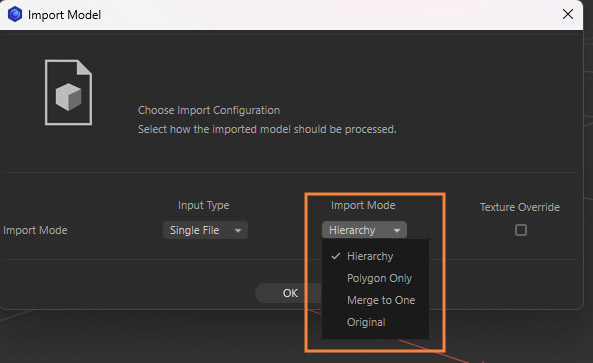
The Model Import function offers four import modes, each providing a different level of structure and cleanup depending on the user’s workflow needs:
-
Hierarchy – Maintains the full object hierarchy while automatically correcting rotation and scale offsets for a clean, aligned import.
-
Polygon Only – Applies the same rotation and scale corrections as Hierarchy mode but retains only the polygon objects, removing all other elements such as nulls, lights, and cameras.
-
Merge to One – Performs the same corrections and combines all geometry from each imported file into a single polygon object, ideal for simplifying complex model structures.
- Original – Imports the model exactly as it is, preserving its original state without applying any automatic corrections or adjustments.
glTF / GLB Import — Material Extraction
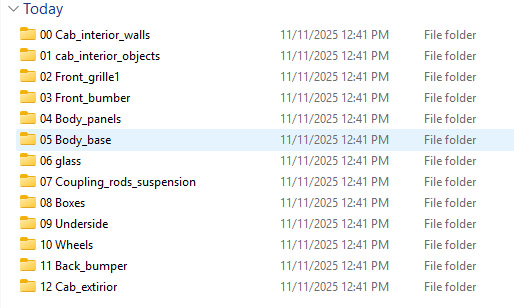
When importing glTF or GLB files, the importer reads the complete material structure contained within the model. For every material detected, a dedicated folder is created, and all associated textures are extracted and duplicated. Even when textures are shared across multiple materials, each material receives its own unique texture copies to ensure full independence during processing and prevent cross-references in the pipeline.
Note
When running SmartTex, each folder generated during glTF/GLB import is treated as an individual material. As a user, you must decide whether to work with the original textures from the standard extraction procedure or the folder-based material textures. Both options are valid, but you should remove either the folders or the separate texture files before importing, otherwise, the same textures will be imported twice, resulting in duplicate materials.
Material Factors — Generating Solid Color Textures
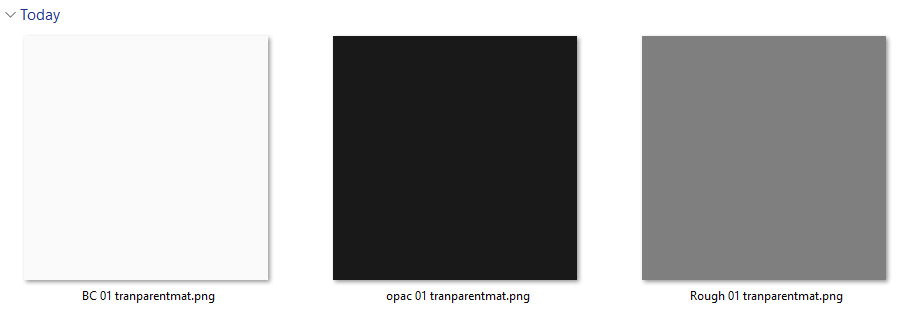
If a material in the glTF or GLB file references factor values (such as base color, metallic, or roughness) instead of image textures, the importer automatically generates solid color textures representing these values. This guarantees that every material, whether texture-based or factor-defined, is fully compatible with the Baked Pixels pipeline and ready for further processing.