Export glTF
From scene to sandboxGeneral Description
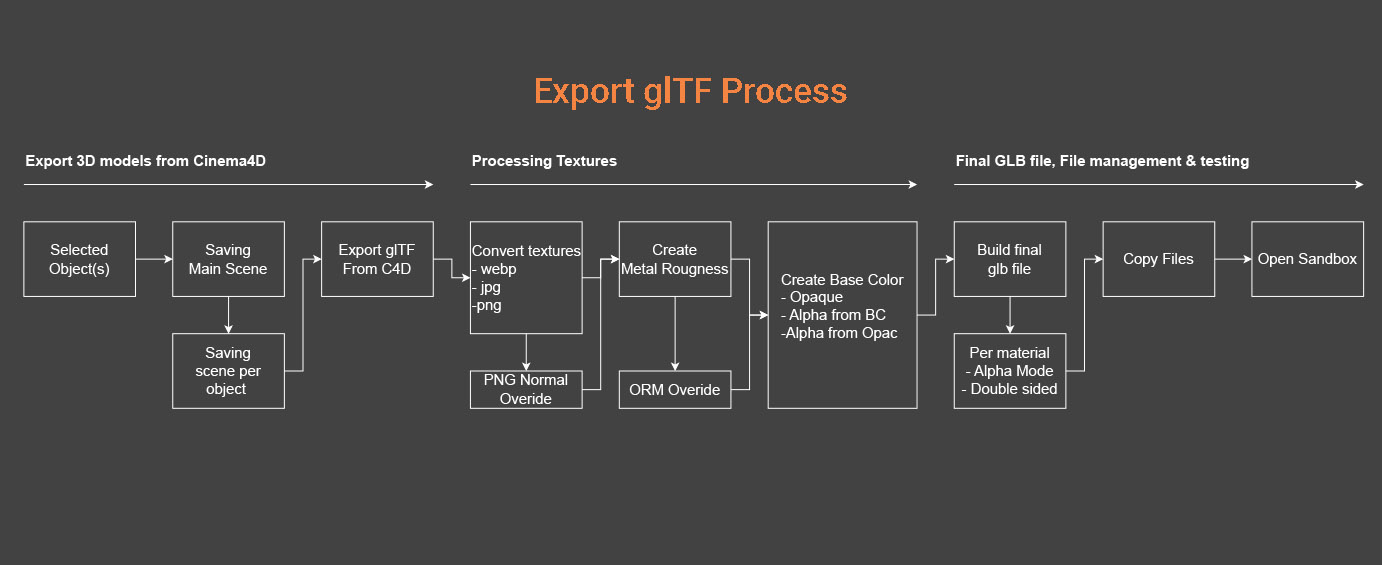
The Export glTF function makes it easy to export selected Cinema 4D objects as high-quality GLB files ready for real-time use. You can choose the texture resolution and file format before exporting, ensuring the right balance between quality and performance.
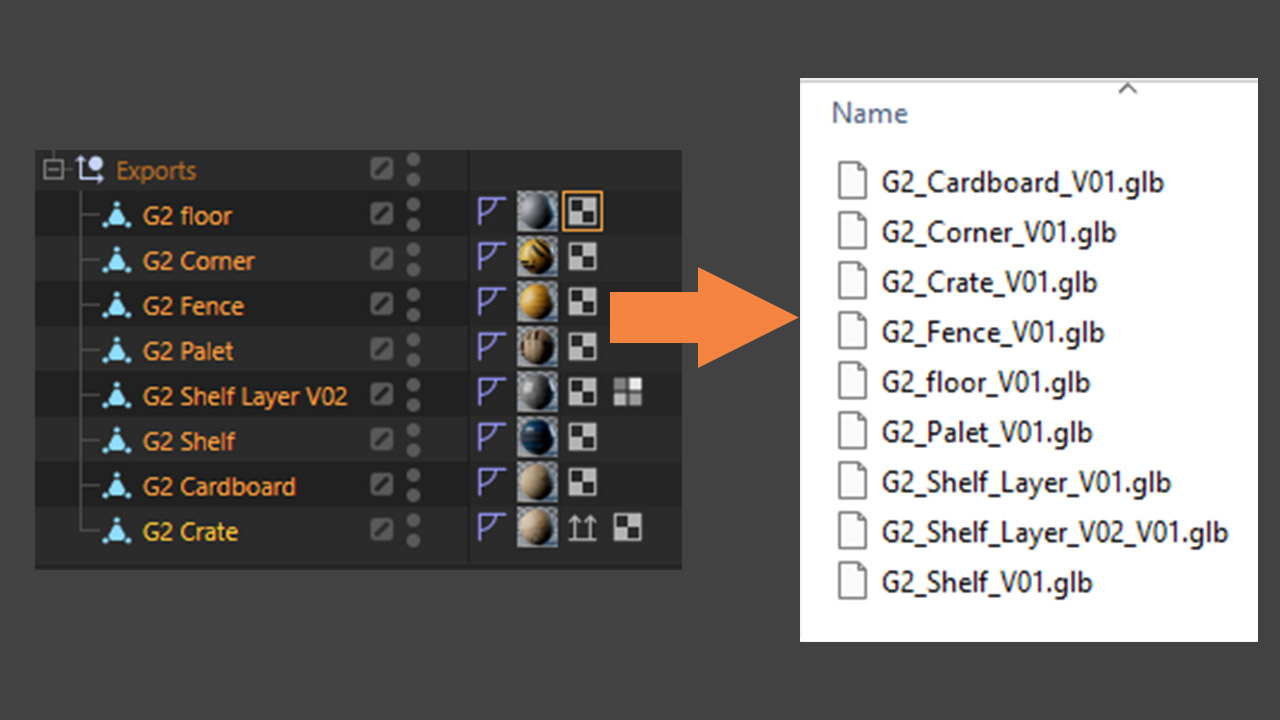
Each export is created according to original glTF standards, with full support for opacity per material, double-sided projections, ORM workflows, and both blend and matte masking options. To keep previous versions safe, every export is automatically saved with an incremental version number.
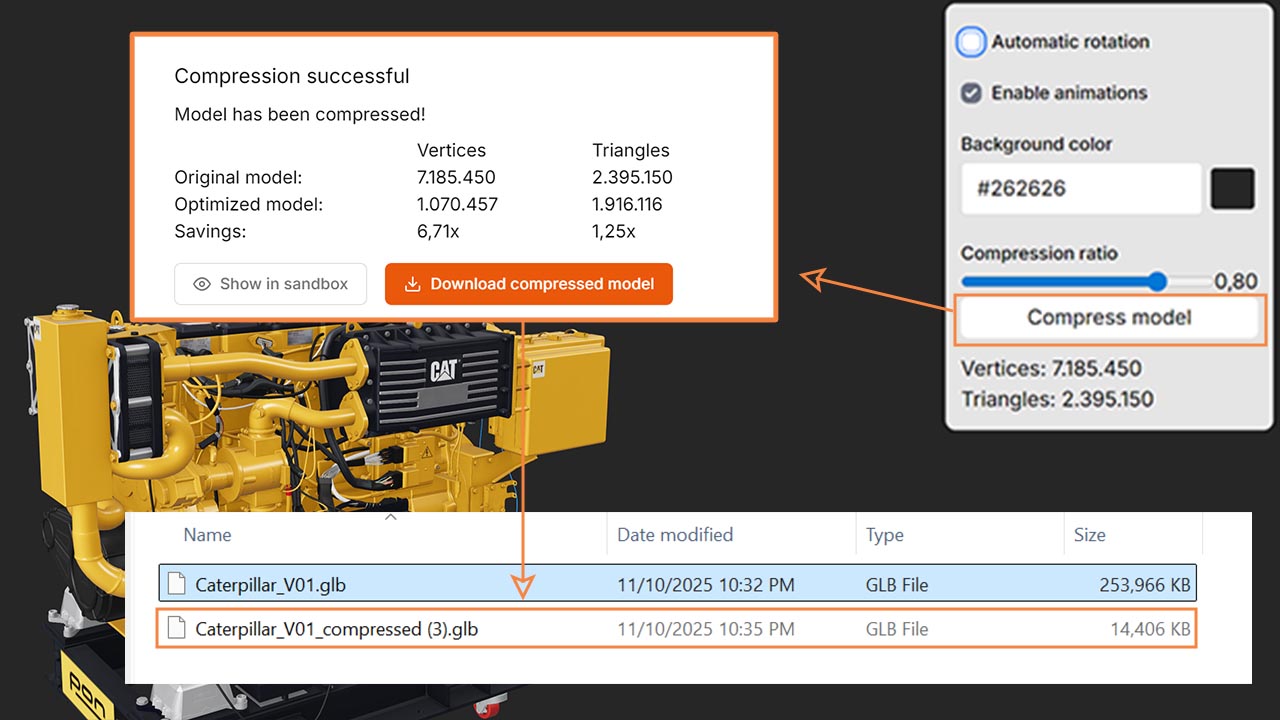
Once the export is complete, the process opens the PubliXR Sandbox, where the results can be instantly tested, reviewed, and compressed for optimized web deployment.
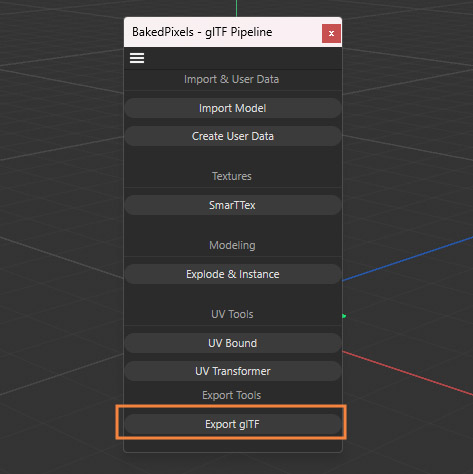
Basic Export
Select one or more objects you want to export and start the Export glTF procedure. The selected objects will be processed, converted, and exported as optimized GLB files according to your chosen settings.
Note: If the export or scene save fails, make sure the objects are placed inside a Null object. In some cases, exporting directly from the root level of the scene can cause the process to fail. Grouping the objects under a Null ensures the export completes correctly.
Texture Resolution and Format
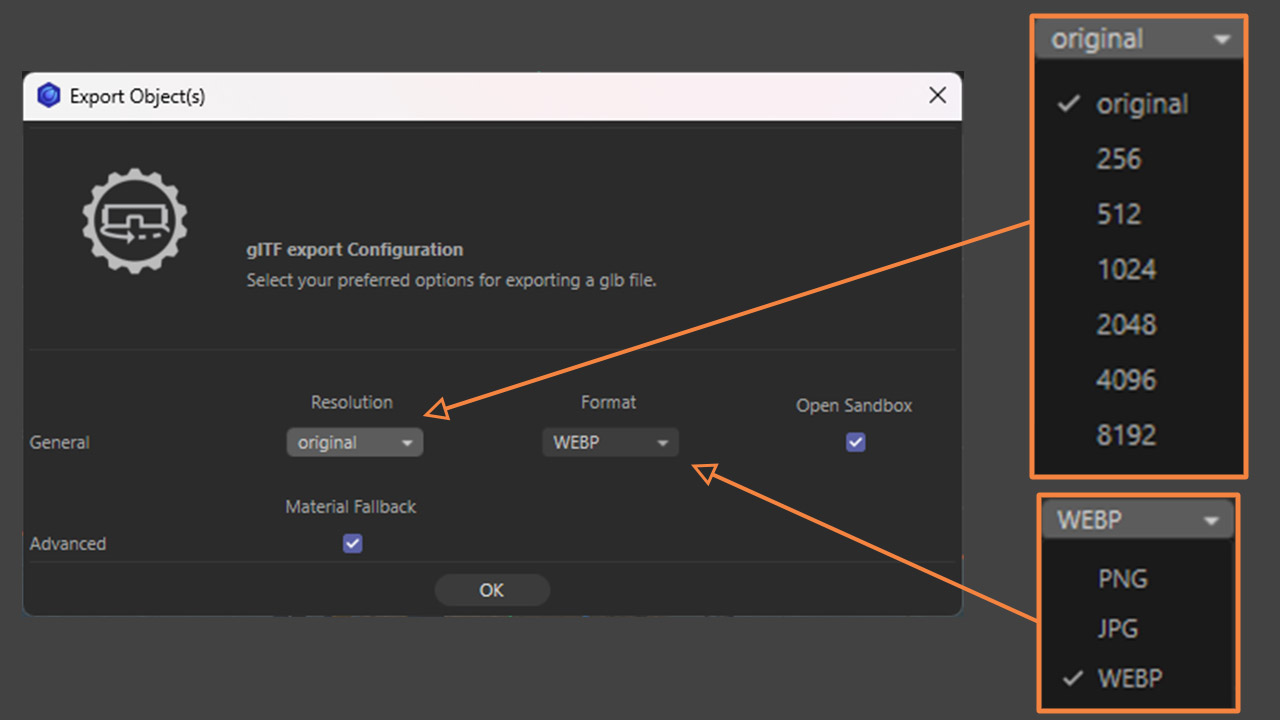
The export process provides full control over how textures are saved and optimized for glTF. Textures can either retain their original resolution or be rescaled to a predefined size ranging from 256 px up to 8K, giving flexibility between performance and visual quality.
Supported Formats:
WEBP – Offers exceptional compression efficiency and very small file sizes, making it the recommended format for most exports and ideal for web use. (Note: WEBP is not supported for AR on Apple devices.)
PNG – Provides lossless quality and alpha transparency support, suitable for materials requiring precise transparency or full AR compatibility.
JPG – Lightweight but no alpha support; only suitable for opaque textures. Exporting materials with opacity as JPG will cause the export to fail.
By default, normal maps are not saved as PNG automatically, but the format can be overwritten per material when higher precision is required. This allows fine control over file size versus detail where needed.
Opacity Control
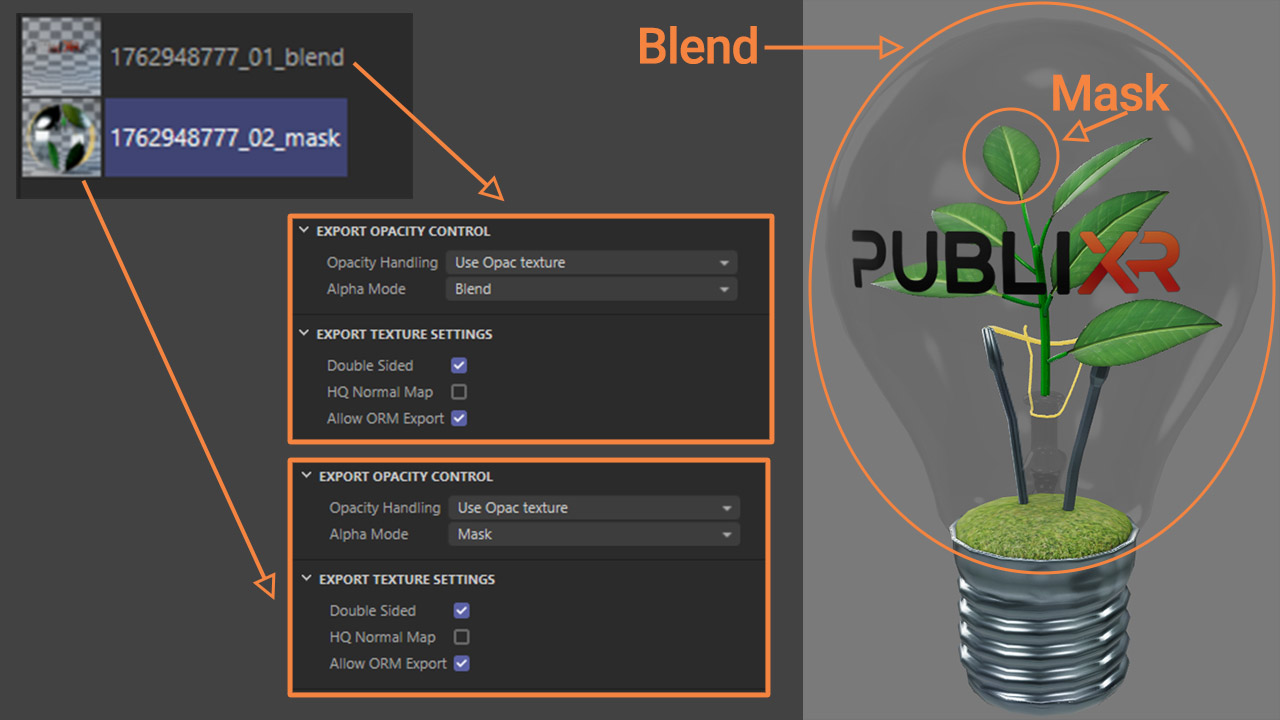
Each material can be exported with its own opacity setting, defining how transparency is handled in the final glTF file. You can choose to export:
- Alpha from Base Color – uses the alpha channel of the base color texture.
- Alpha from Opacity Texture – uses the opacity texture to define transparency.
- Opaque – disables alpha entirely for materials that are fully solid.
When alpha is enabled, two Alpha Modes are available:
- Mask – creates a hard cut based on a threshold value. Ideal when the opacity texture is part of the same material (for example, foliage, decals, or cutout details). Mask mode keeps all texture data within a single material.
- Blend – supports gradual transparency, handling levels or gradients of opacity. This mode allows smooth transitions between transparent and opaque areas. Because of how it’s rendered in the web viewer, it’s recommended to use a separate material for all geometry that requires blend transparency to avoid visual artifacts.
These settings ensure consistent visual results between Cinema 4D, the glTF export, and the PubliXR Web Viewer.
Material Fallback
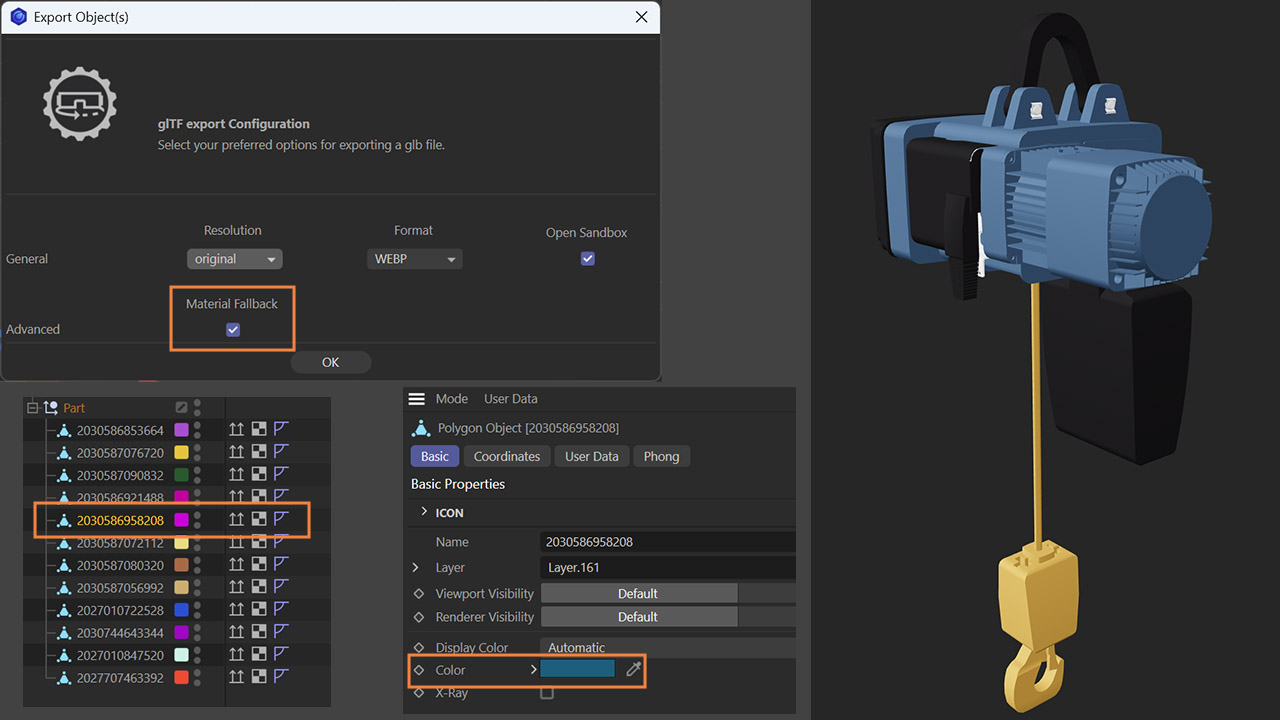
The Material Fallback option provides a smart solution for exports where materials have no connected textures. When enabled, it automatically creates or updates materials using the Base Color, Metalness, Roughness, and Emission values already defined in the material. If these values differ from Cinema 4D’s defaults, they are used directly in the export to ensure the material’s appearance is preserved.
If an object has no material at all, the fallback system will use the object’s Display Color as its base. It also detects other objects sharing the same color and automatically links them to the same generated fallback material, keeping the export organized and consistent.
When the Material Fallback option is turned off, the export will follow Cinema 4D’s native behavior — meaning only materials with valid texture or shader connections will be included in the glTF export.
PubliXR Sandbox
After exporting, the PubliXR Sandbox automatically launches to let you preview your glTF file directly online. To access it, simply log in with your PubliXR account. Viewing your exported results is free for all account types, making it easy to review materials, lighting, and transparency before publishing.
For users with a paid subscription (starting from 3D Pro), the sandbox also enables glTF compression to optimize model performance for the web. Compression operates in two ways:
-
It always compresses the mesh data to reduce file size.
-
When the threshold value is set below 1, it also performs triangle reduction, lowering mesh complexity while maintaining visual fidelity.
Depending on the quality of your input model, you can decide whether to reduce triangles or keep the original geometry for maximum detail.
🔗 Open the Sandbox: app.publixr.com/sandbox