UV-Transform
Texture Baking & UV optimizationUV Transfer
The UV Transfer module bakes textures in different ways to generate new texture sets. Multiple objects and material tags can be combined into a single material texture set.
The bake system supports multiple workflows and offers four baking methods:
-
Triangle Warp
-
UV Island Baking (Island Warp)
-
UV Island Duplication (Cut Identical)
-
UV Grid Bounding (Bound)
Additional options include:
-
Bleed: Expands UV islands, triangles, or bounding areas to avoid visible seams.
-
Solidify: Fills gaps to ensure seams remain hidden.
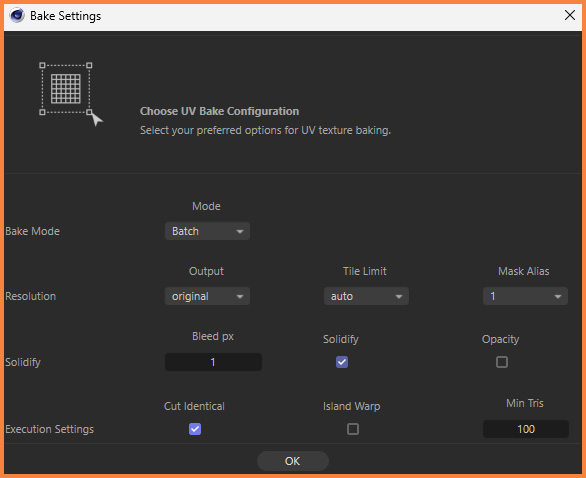
Modes: Batch, Combine, and Bound
The UV Transform module offers three distinct modes:
-
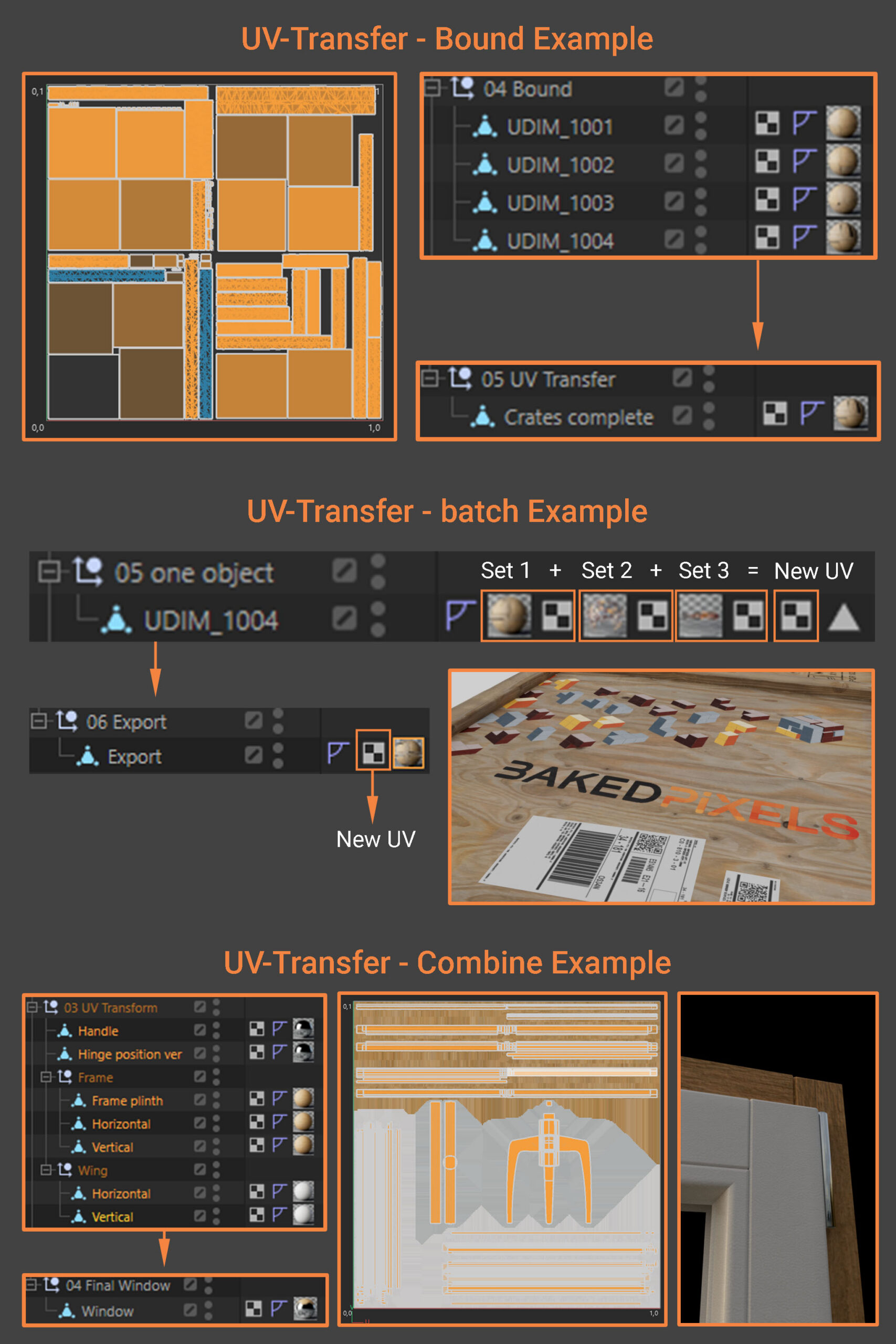
Batch – Processes a selection of objects in bulk. Each object receives its own new material, and all material tags are baked horizontally and hierarchically into that material.
-
Combine – Similar to Batch, but also merges vertically across the selected objects. The result is one combined material for all objects.
-
Bound – Cuts out the UV grid of the positioned UV map and creates a new material. For the selected object, this results in a single new material.
Resolution Settings & Antialiasing
When baking, you can define both the output and the Tile resolution.
-
Output – This is the final baked result. Before baking begins, textures are transformed and tiled to their native position and scale.
-
Tile Limit– Controls the resolution of the input tiles. It is recommended to keep this setting reasonable, as very large tiles (e.g. 16k) can slow down processing dramatically without noticeably improving quality.
-
Mask Alias – Defines the resolution of the UV masks used to cut UV islands.
Solidify & Bleed
-
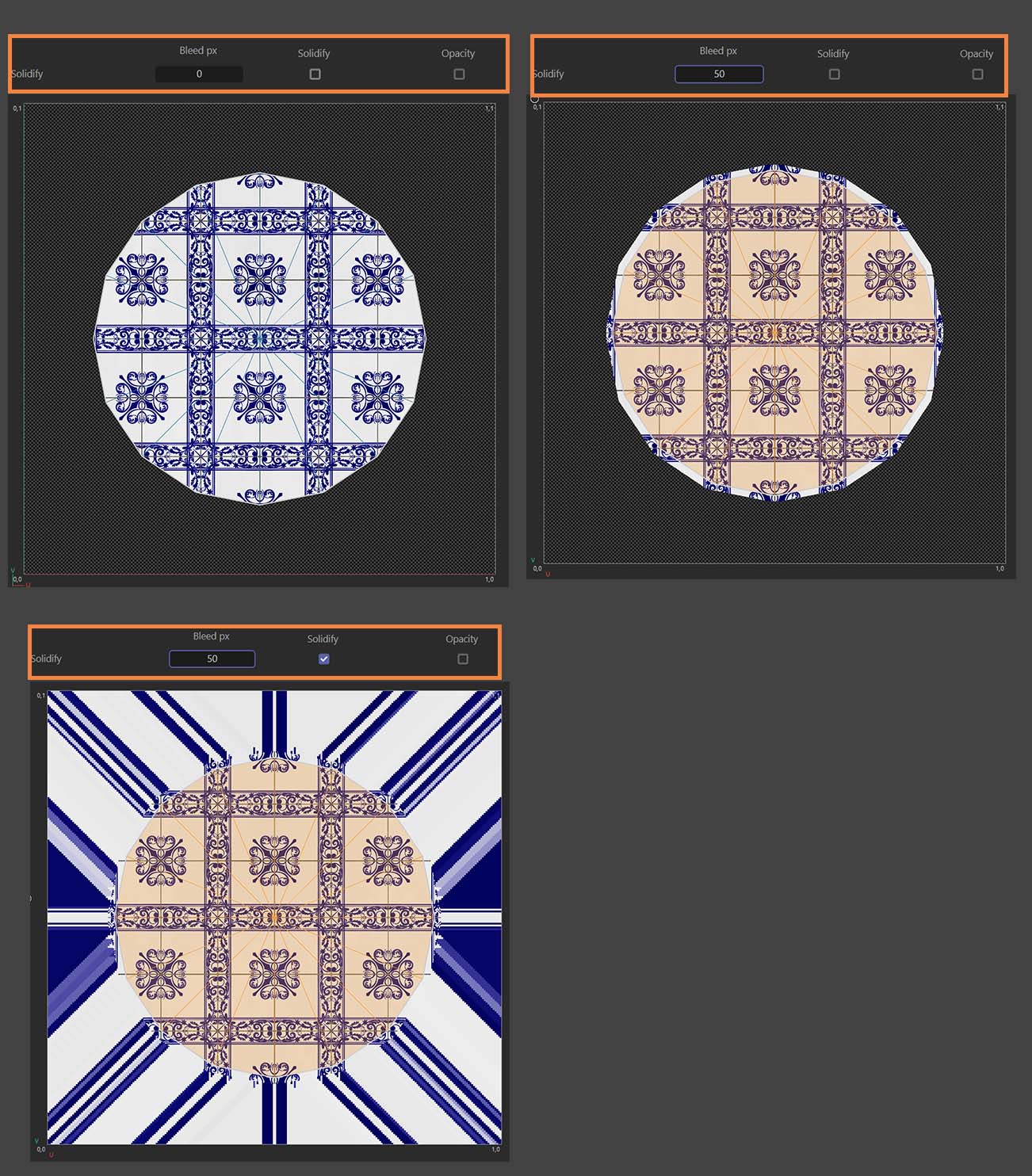
Bleed – Defines how far textures extend beyond UV edges, measured in pixels. The ideal value depends on the chosen output resolution. For Bound mode, a bleed of
0is sufficient, since only the UV grid boundaries are cut. -
Solidify – Controls whether empty areas of the UV map are filled.
-
Off: No solidification is applied; unfilled areas remain transparent (alpha/opacity).
-
On: Multiple passes at different resolutions are used to automatically fill empty pixels and prevent visible seams.
-
-
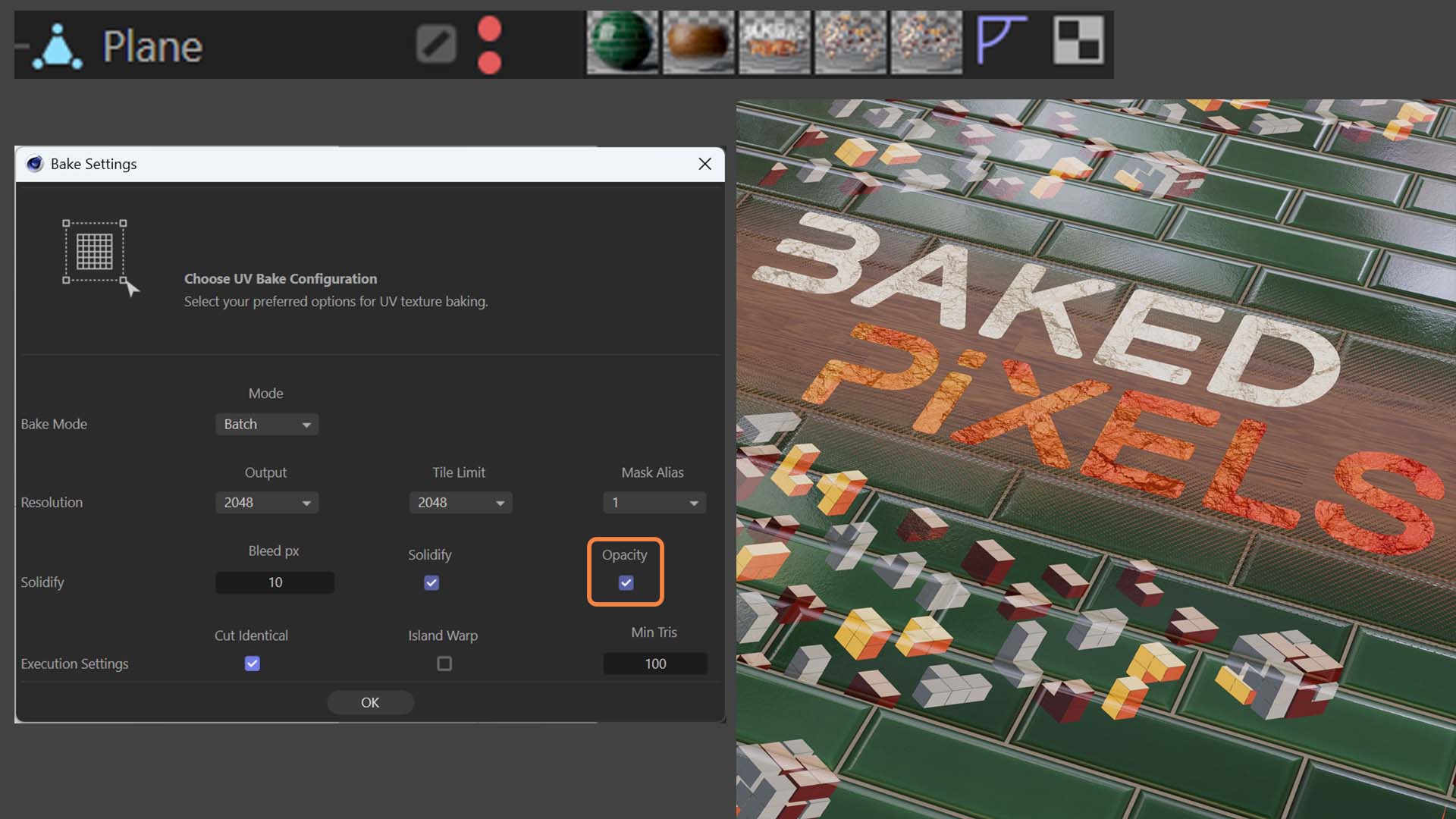
Opacity – When enabled, opacity values in the base layer are preserved and not overwritten during solidify. This also prevents solidify from filling pixels in overlay projections. When disabled, solidify fills empty pixels inside UV islands regardless of opacity, which is recommended when materials are stacked to avoid visible seams in the final baked textures.
Bake Types
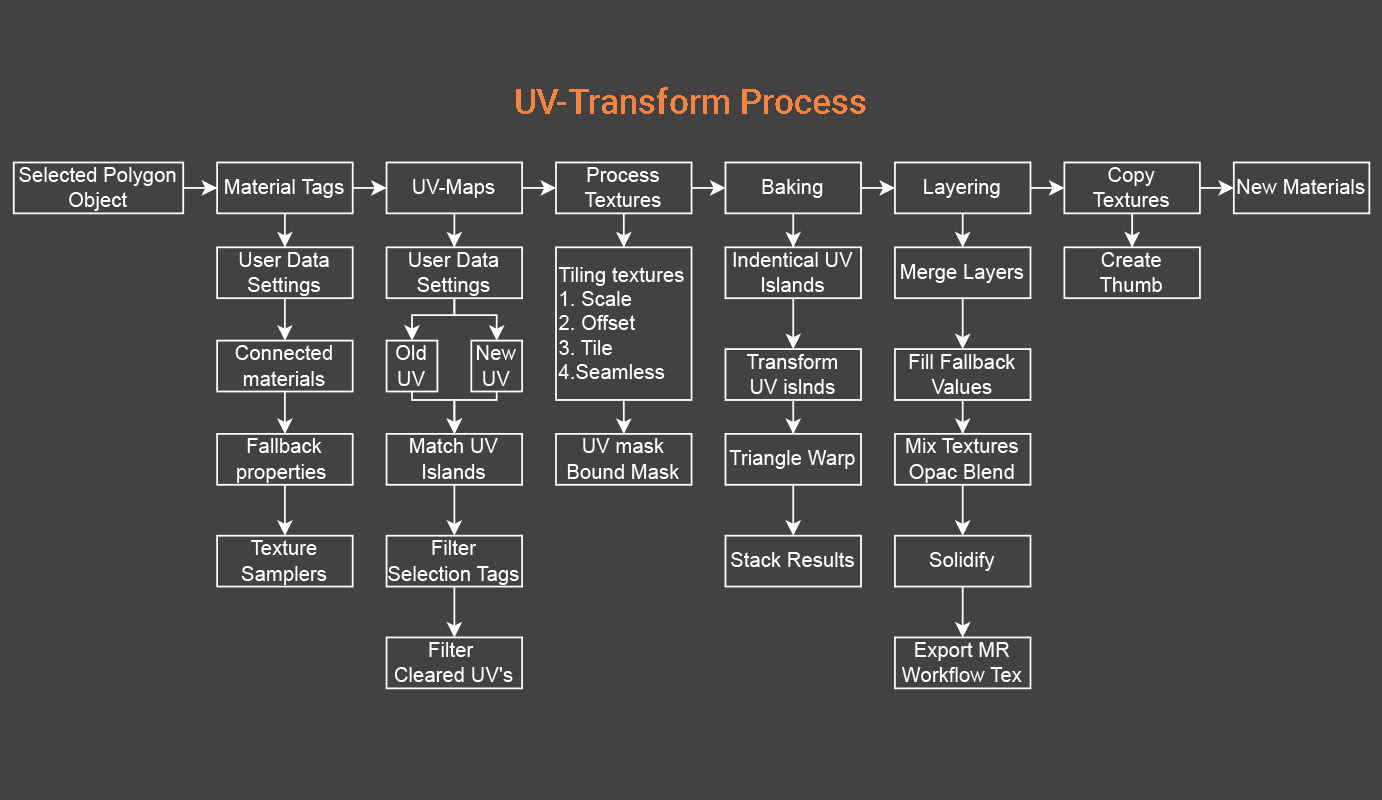
The UV Transform module supports four types of baking, depending on the selected mode and options.
-
Bound Mode
-
Uses only grid-based cropping.
-
Textures are repositioned, cut to the UV grid, and then combined with the other selected objects.
-
-
Batch & Combine Modes (Execution Settings)
These modes offer three different baking methods:1. Identical Islands – The fastest method and highest quality. If a UV island is in the same position in both the source and target, it can simply be cut out directly.
2.UV Island Warping – Islands are baked from their source to their new target position. The threshold setting defines the minimum triangle count for an island to be processed this way. Smaller islands fall back to triangle warping.
3.Triangle Warping – Each triangle (or split quad) is baked individually. This is the fallback method when the other two options cannot be applied.
Projections & UV Tags
-
Only UVW projections from material tags are processed.
-
Use Generate UV Coordinates to convert projections into UV maps.
-
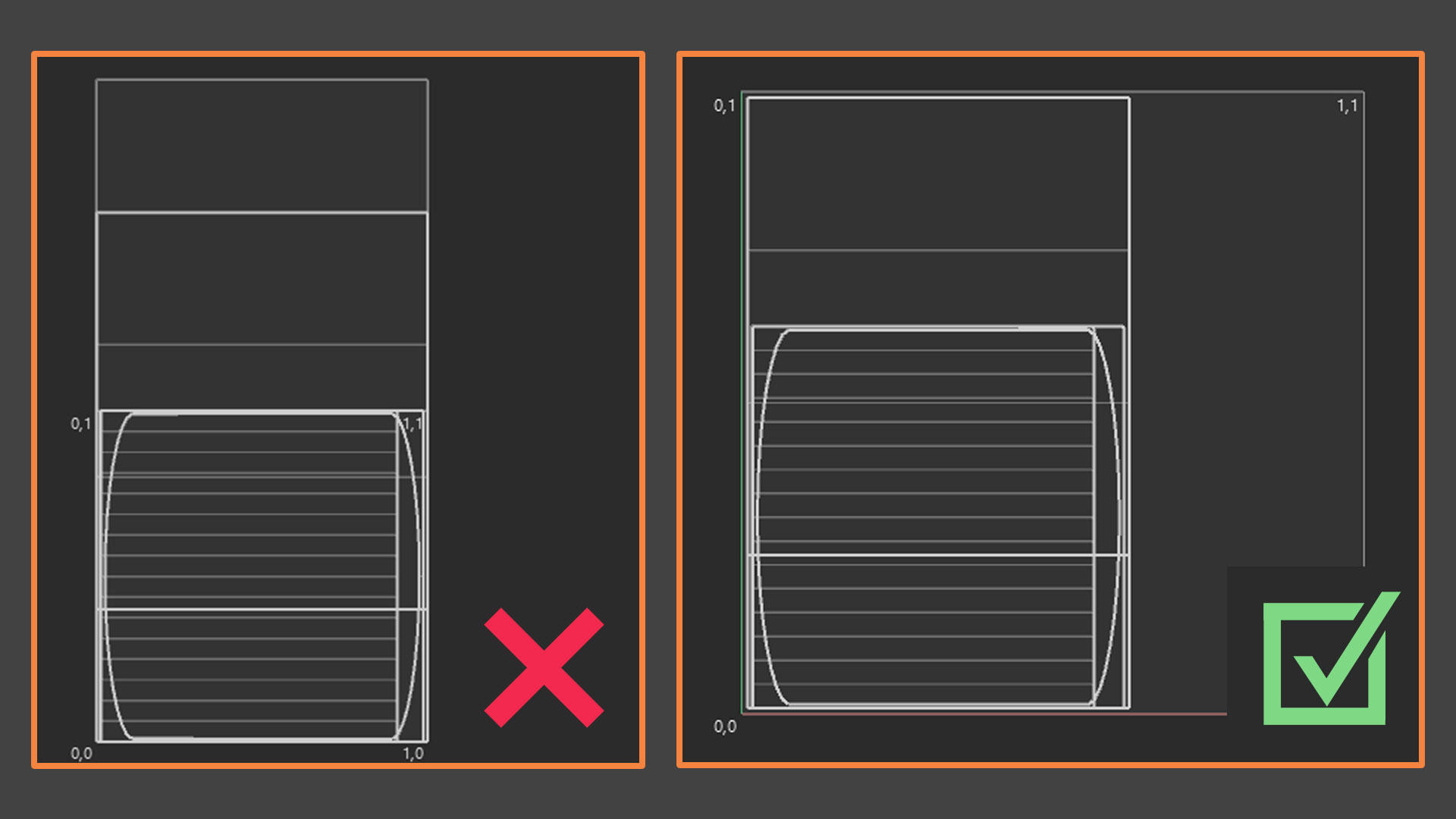
Apply UV Bound to ensure all UV islands stay within UV space.
-
Textures can only be baked inside the defined UV space.
-
Selection tags are supported. Unused UV polygons can be cleared per UV tag.
-
Baking is performed for every material tag. Anything outside a selection or cleared from the UV map will be skipped during baking.
Tag Hierarchy
-
Bound Mode
-
Each selected object should have 1 UV tag and 1 Material tag.
-
While Bound supports multiple UV maps, this is not recommended. (See UV Bound for more details on preparing UV positions.)
-
-
Batch & Combine Modes
-
Objects can have multiple Material tags, UV maps, and Selection tags.
-
If only 1 UV map is used, the Identical Islands method can quickly cut UV islands into the new texture.
-
If multiple UV maps are used, the last UV map on the object is treated as the final target, and all inputs are baked into it.
-
To ensure correct baking, all Material tags must be placed to the left of the UV map in the tag hierarchy.
-
Material Tag Settings
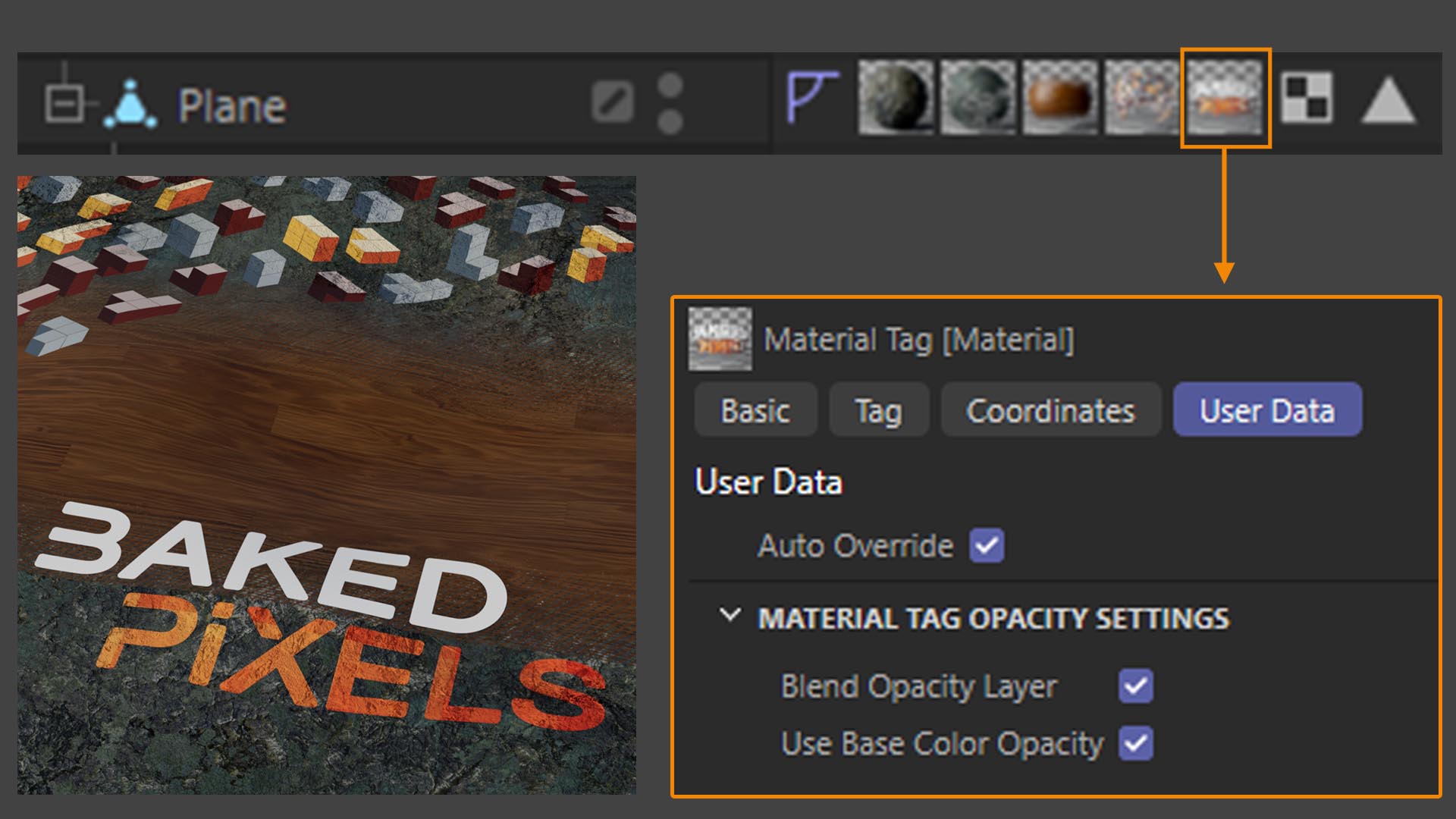
Each material tag includes user data settings that control how textures are processed during baking:
-
Opacity Handling
-
Choose whether opacity maps are blended into the result or cut out with a hard edge.
-
Define whether the alpha channel from the base color texture is used, or a separate opacity texture is applied
-
-
Mix Textures (Add Material)
-
Off: Missing properties (e.g. metal, roughness) are filled with neutral values.
-
On: Keeps underlying textures for missing properties, allowing blending. For example, you can overlay a base color logo on top of an existing rough surface
-
⚠️ Important Note
Filled neutral values are not affected by opacity. To create natural transitions between materials, ensure that all properties are consistently defined across the materials. Also make sure to turn on “Opacity” in the solidify section!
-
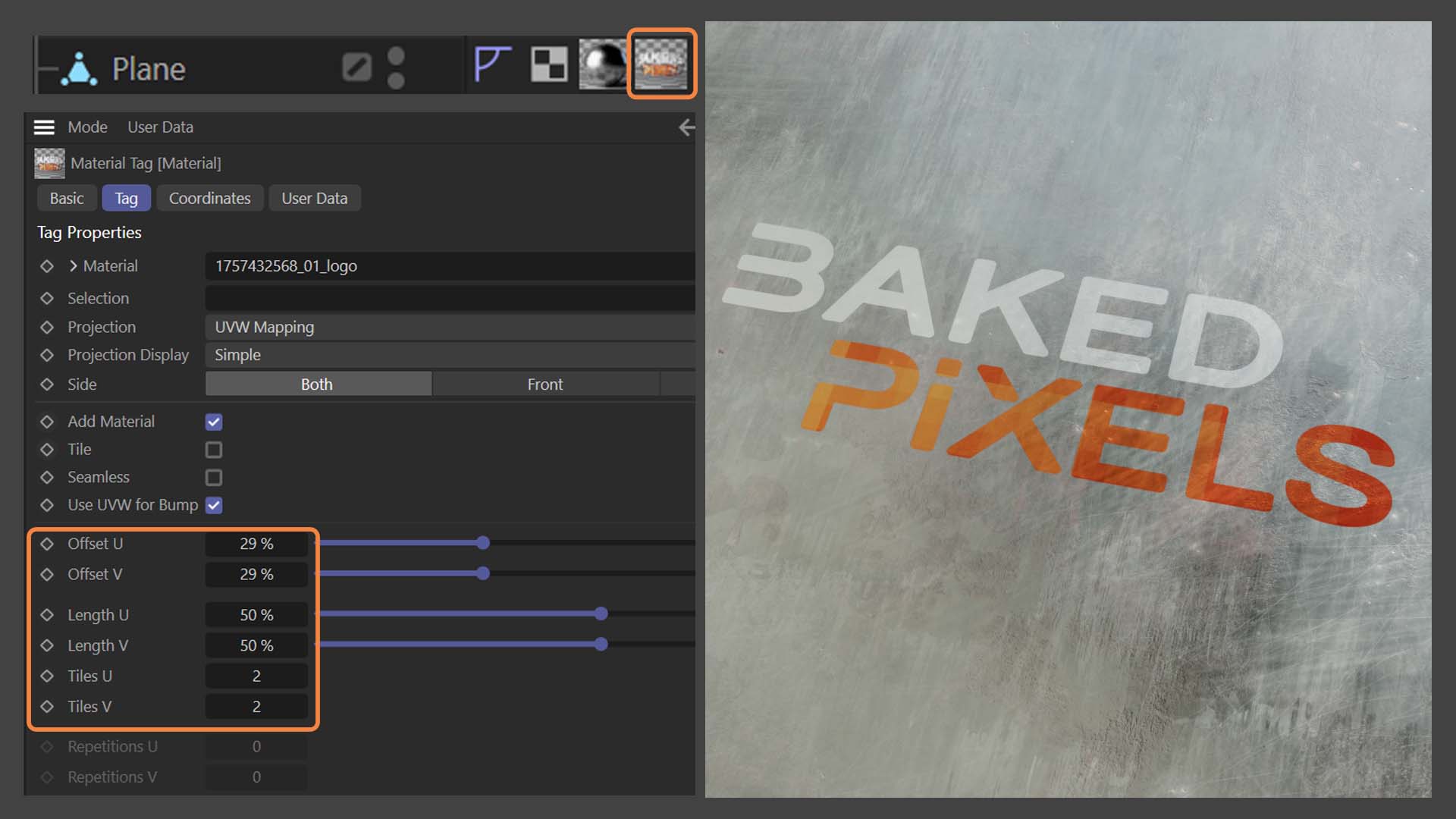
Tile
-
Determines whether the input texture is tiled across the surface.
-
-
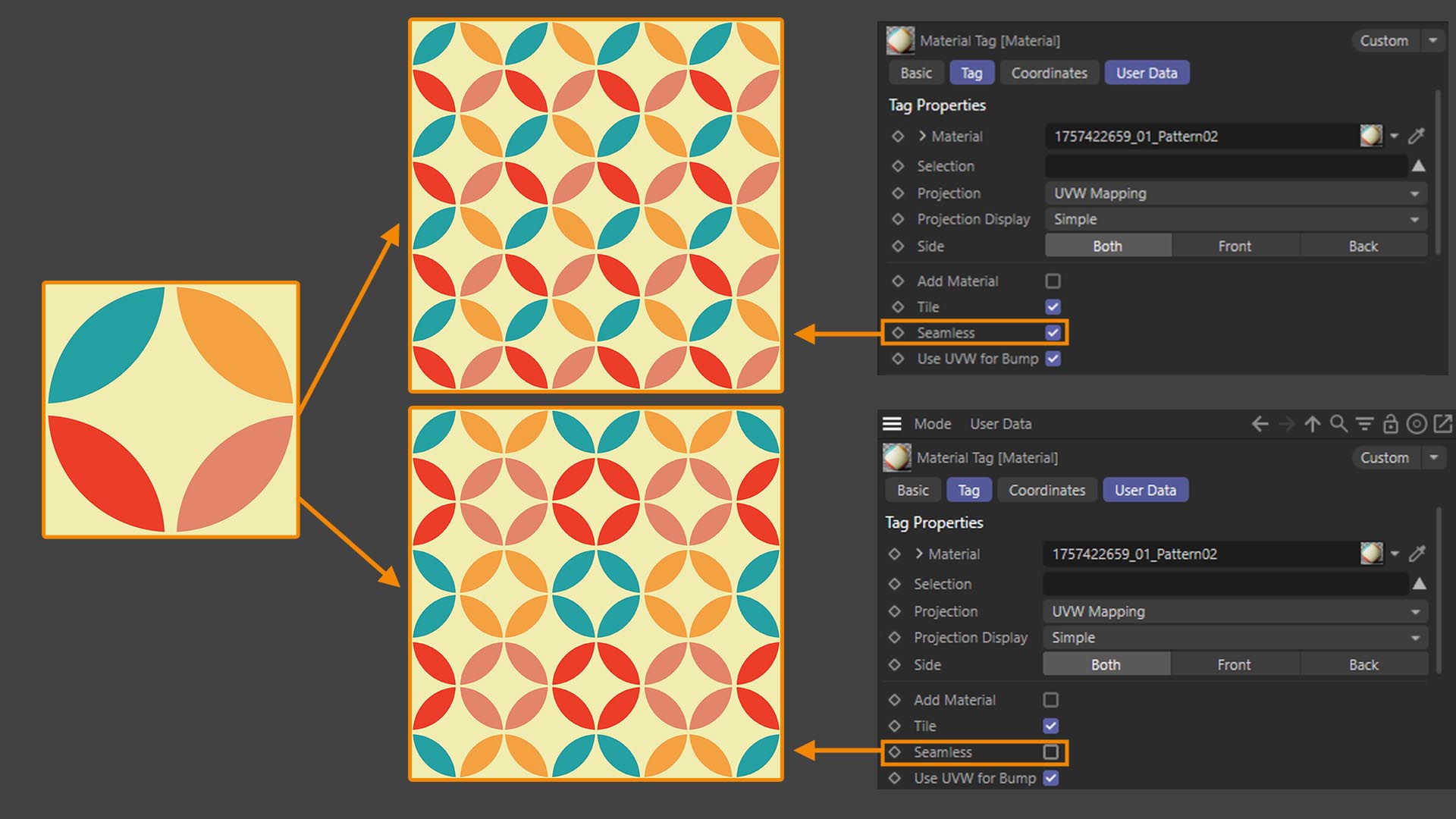
Seamless
-
Enables seamless tiling of textures.
-
-
Offset & Scale
-
Adjusts the projection position and size of the input texture.
-
These values remain synchronized with the tiling settings before baking.
-