UV-Bound
Re-organize your UV layoutGeneral Description
UV Bound is created to reorganize and optimize UV layouts before the baking process. It allows you to relocate and combine UV maps from one or multiple objects into a new, shared UV space.
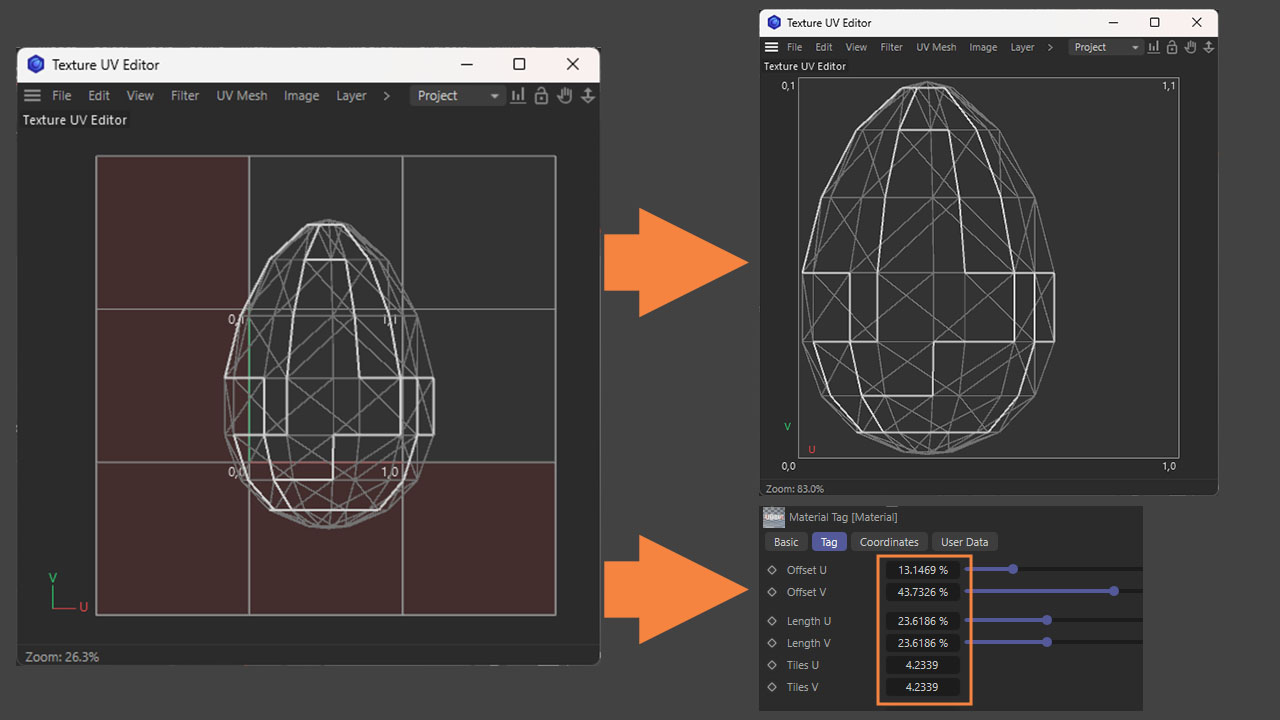
During this process, the material tags are automatically synchronized with the new UV coordinates, ensuring that all materials remain correctly aligned to their textures. No baking occurs at this stage, UV Bound simply prepares and restructures the UV layout. Once complete, UV Transform can then bake the relocated textures to generate the final materials.
UVW vs Projection
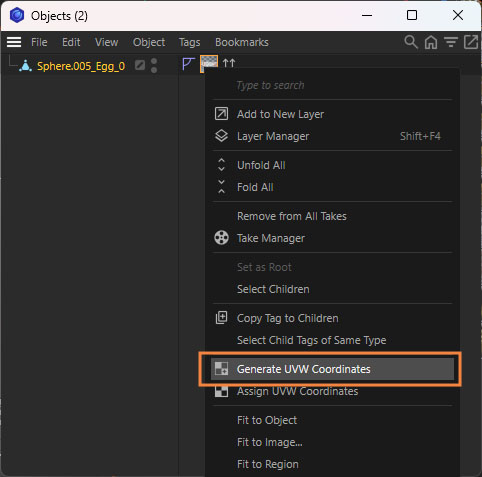
UV Bound can only reposition UVW maps, not projection types such as cubic, spherical, or flat. However, you can easily convert these projections using Cinema 4D’s Generate UVW Coordinates command. Once converted, UV Bound will automatically fit and align the new UVW map into the UV space, ready for reorganization or combination with other layouts.
Manual Mode
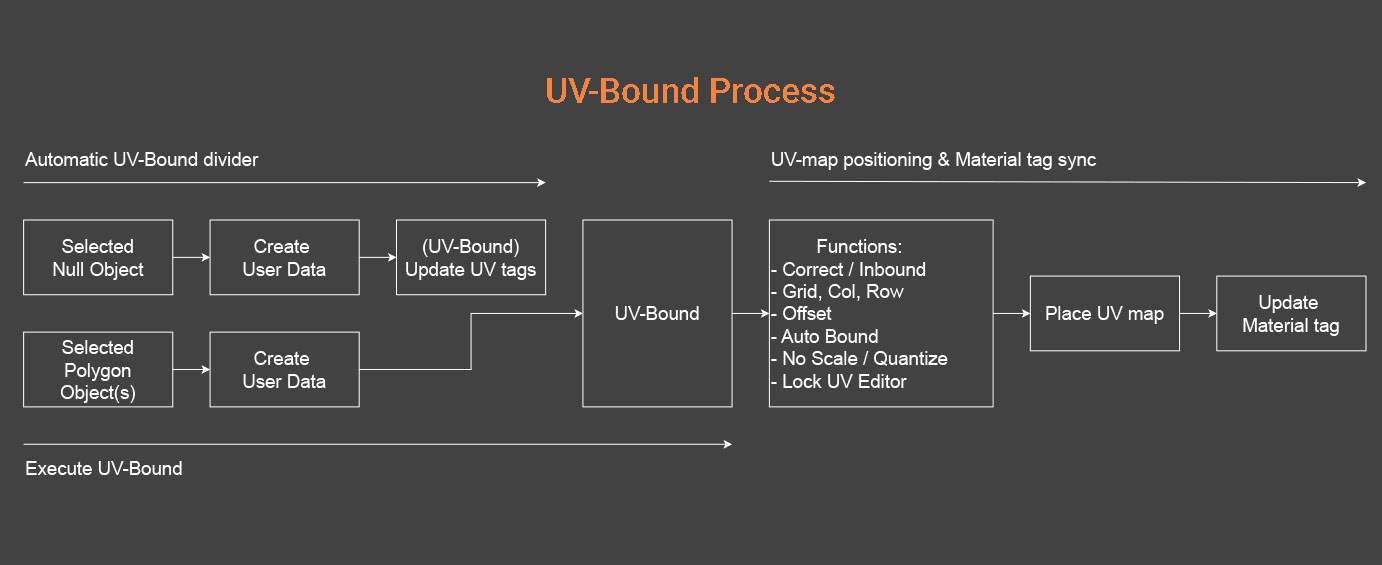
In Manual Mode, the user has full control over how UV maps are reorganized and positioned. This mode is ideal for custom UV layouts or smaller object groups that require manual adjustments.
Before running UV Bound in this mode, it is necessary to execute Create User Data to generate the required fields on the UV map. These user data entries store all UV-related information and ensure that the UV relocation process functions correctly.
Automatic Mode
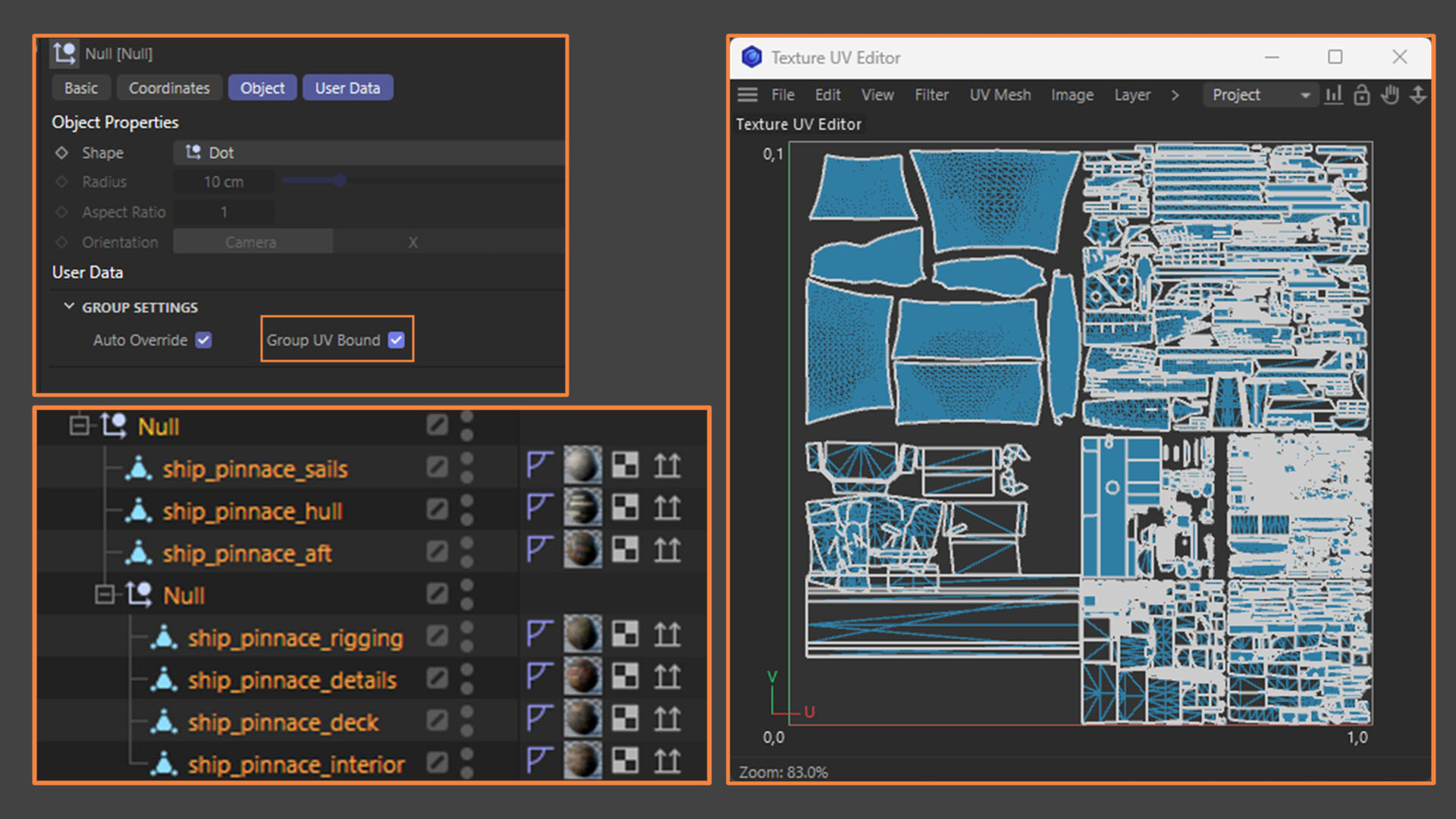
Automatic Mode simplifies the process by managing UV repositioning based on object hierarchy and count. When a Null object is selected and Create User Data is executed, a checkbox named “Group UV Bound” is added to the user data.
When this option is enabled and UV Bound is run for the first time, all relevant data is automatically written into the UV tag user data. Running UV Bound a second time will then automatically place each polygon object into its new UV position according to the object count and hierarchical structure.
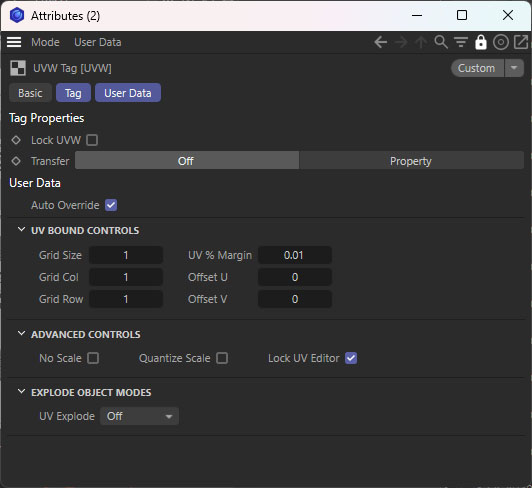
UV-Tag User Data Settings
The UV-tag user data defines how a UV map is bounded, positioned, and optionally scaled within the UV grid. The system uses three core parameters — Grid Size, Column, and Row — to determine the UV map’s position inside the organized layout.
The Threshold parameter allows controlled downscaling from the grid boundary, with values between 0.0 and 0.45. This can slightly contract the UVs to prevent overlaps or leave padding between adjacent UVs.
The Offset parameter shifts the UV map relative to its starting position. Values range from 0.0 to 1.0, where 1.0 represents a full UV field offset (equivalent to one UDIM tile). While primarily intended for fine adjustments, it can also be used to reorganize UVs across multiple UDIM spaces.
Additional scaling options include:
-
No Scale – Keeps the UV map at its original size and only repositions it.
-
Quantize Scale – Applies scaling in quantized steps to minimize sub-pixel shifts and rounding inconsistencies (though such deviations are rarely an issue in practice).
These settings together provide full control over how UV maps are aligned and distributed within the UV grid prior to baking.
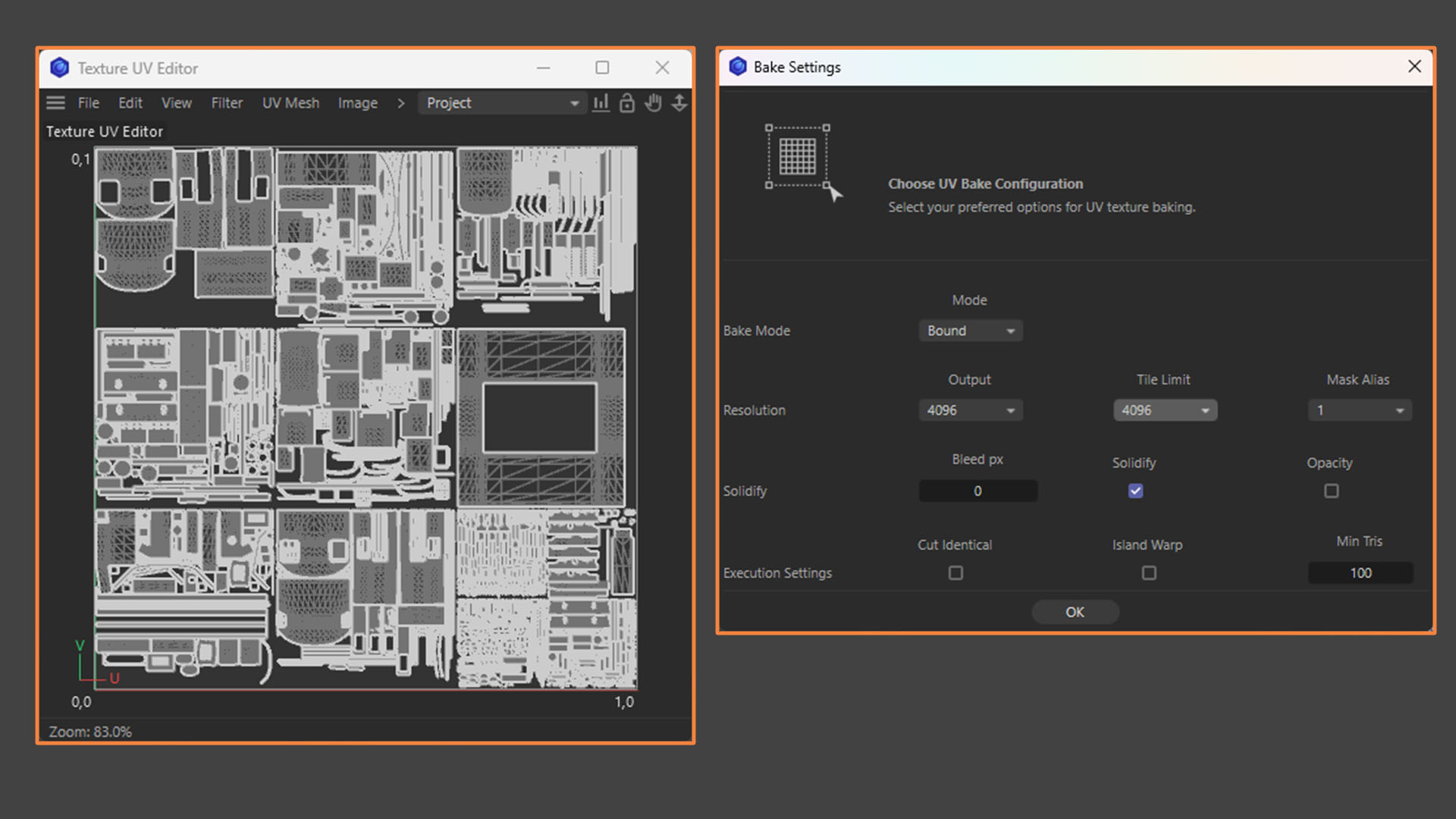
Baking UV-Bound UV Maps – Direct Grid Alignment
When UV maps are positioned directly within the UV grid, meaning each map occupies a defined grid cell without any offset, they can be baked using the Bound mode in UV Transform.
In this workflow, the baking process repositions the entire texture to the new UV layout exactly as defined by the grid, with no overlaps between UV maps. This method is ideal for clean, grid-aligned layouts and ensures precise alignment between textures and UVs without requiring masking or additional processing.
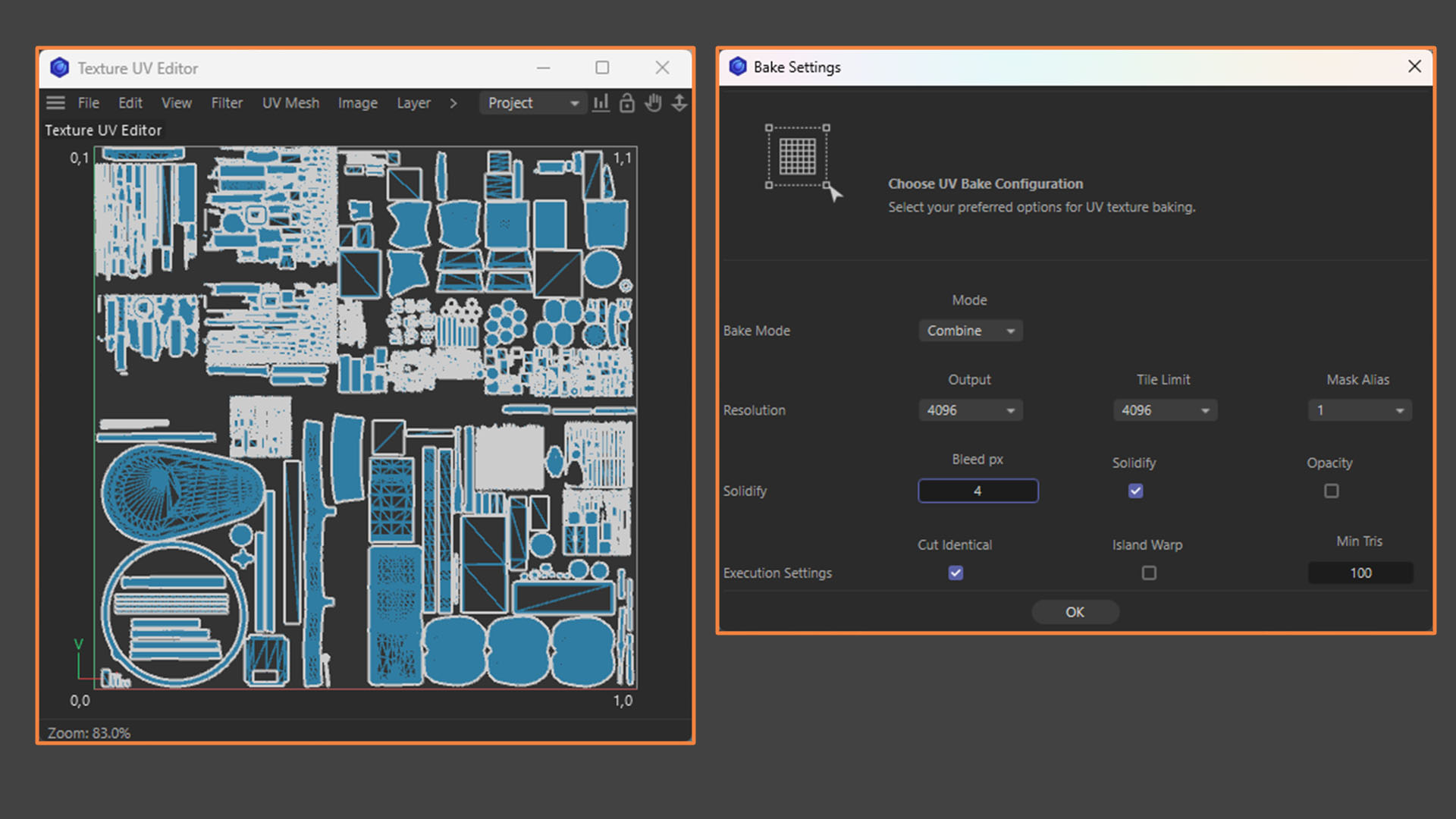
Baking UV-Bound UV Maps – Using Offsets or Complex Layouts
When UV maps include offsets or form a more complex UV layout that extends beyond the standard grid, baking should be performed in Batch or Combine mode in UV Transform, with Identical Islands enabled.
In this mode, the UV masks are used to accurately cut and isolate each UV area before repositioning, ensuring textures do not overlap after relocation. This approach is recommended when working with multi-object UV Bound layouts, where individual UVs share or extend beyond grid boundaries.
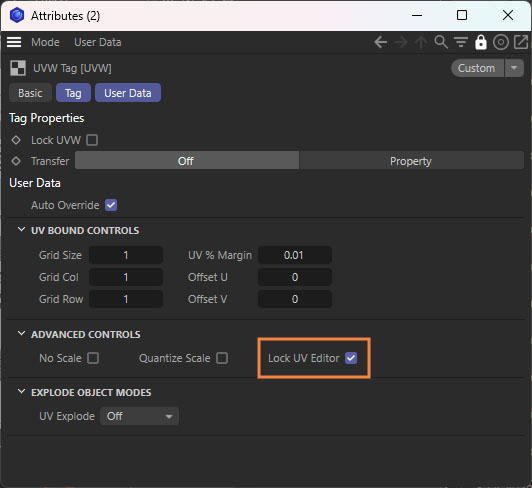
Lock UV Editor
When working in multiple steps on the same object, it is recommended to enable Lock UV Editor. In Cinema 4D, a UV Editor window must always be open for UV Bound to perform its operations.
If Lock UV Editor is turned off, a new UV Editor window will be opened each time the command runs, which can quickly lead to multiple open editor windows. Enabling this option keeps the existing UV Editor active and prevents duplicates, but make sure a UV Editor window is open before executing the function, otherwise the operation will not run.