SmarTTex
One-click texture workflow for RedshiftDescription
This module automatically imports, processes, and converts textures while assigning proper names and optimized image profiles for glTF export. Each image is handled uniquely per material, ensuring no texture is shared between multiple materials. Every texture is made unique not only by name but also by its metadata, preventing database conflicts..
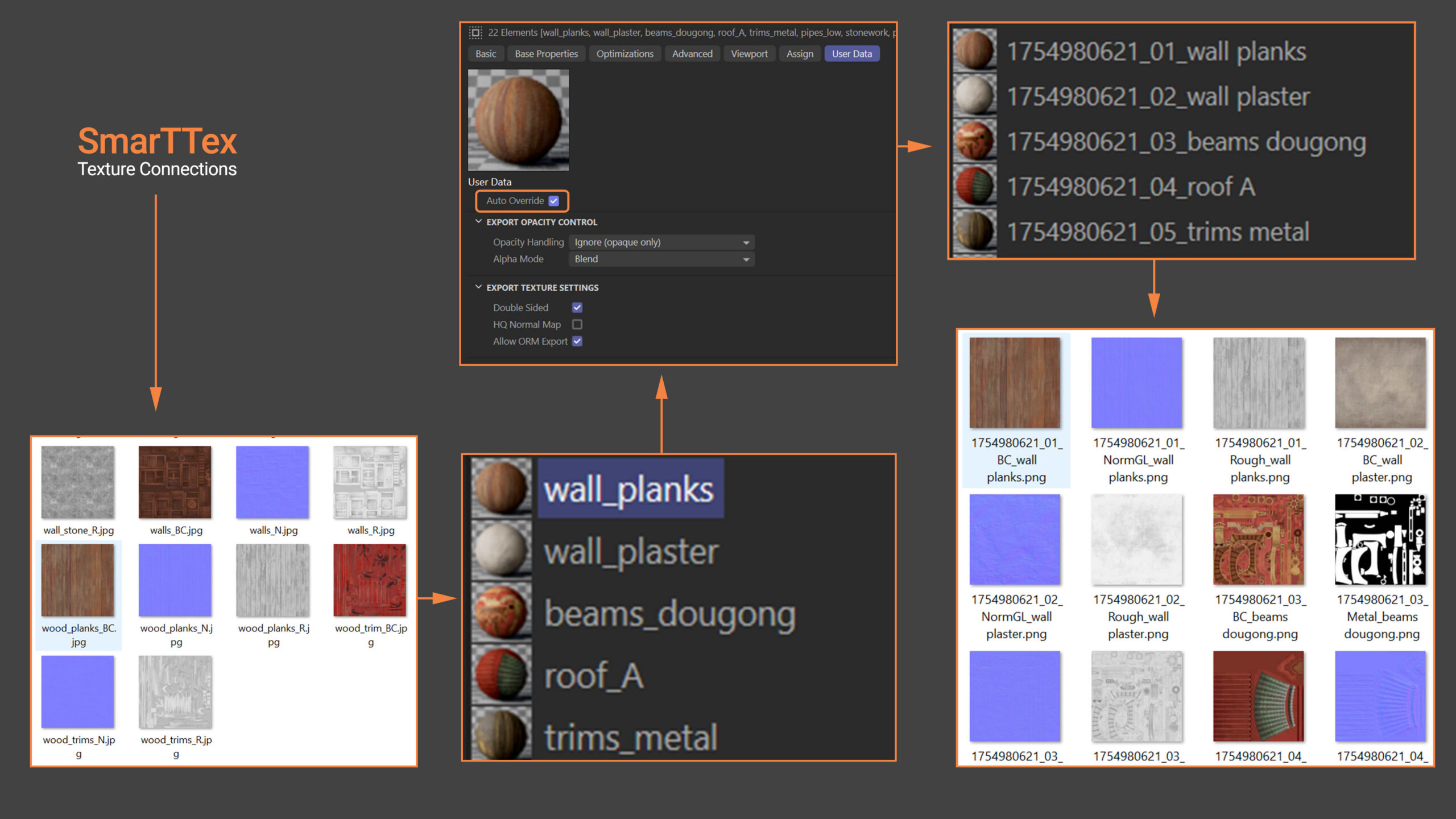
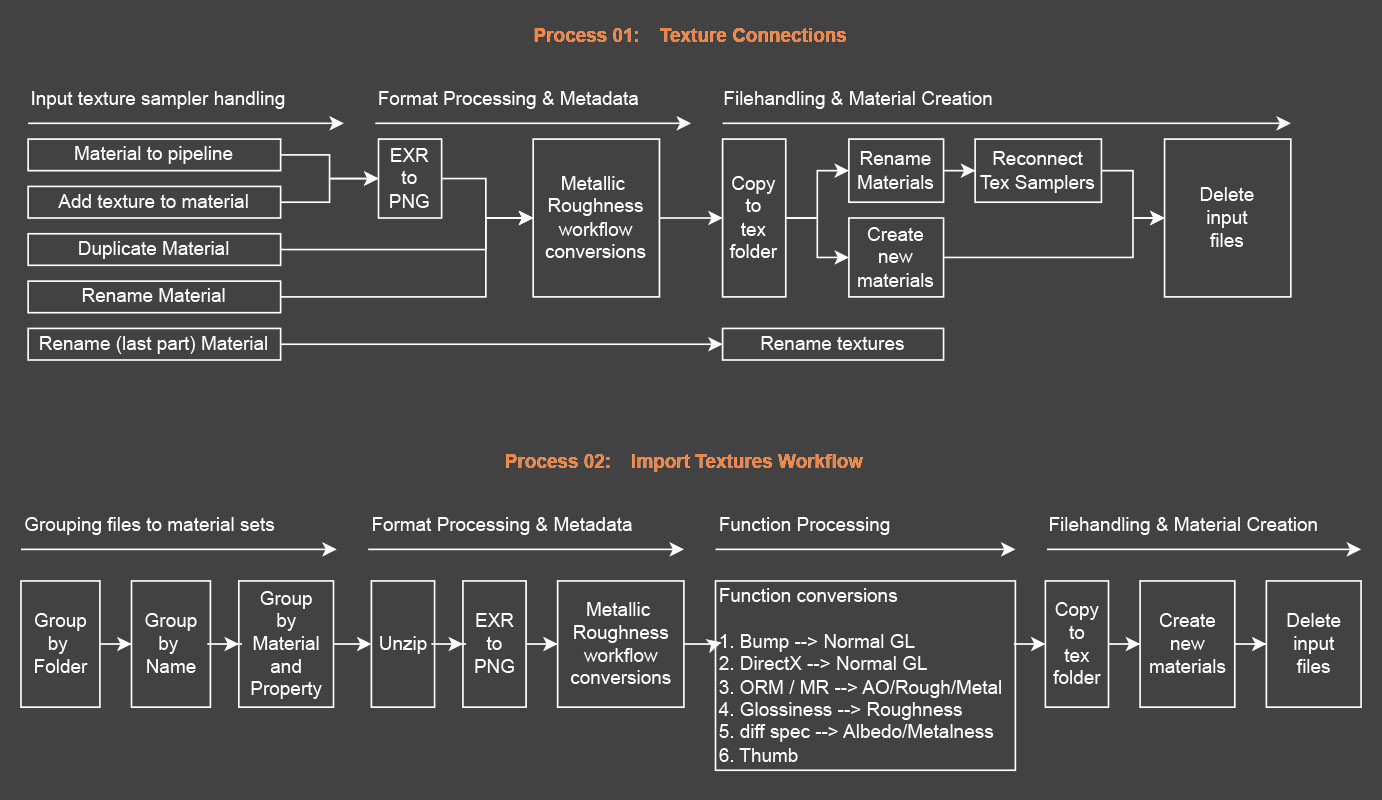
Mode 01: Texture Connections
This mode checks, renames, reconverts, and reconnects all textures and image settings whenever a material is manually updated or changed. It’s ideal if you prefer creating materials yourself and later integrating them into the pipeline. Duplicating and renaming materials with their corresponding textures is also supported.
Note: Only direct connections with texture samplers are supported. See the list of supported properties for details.
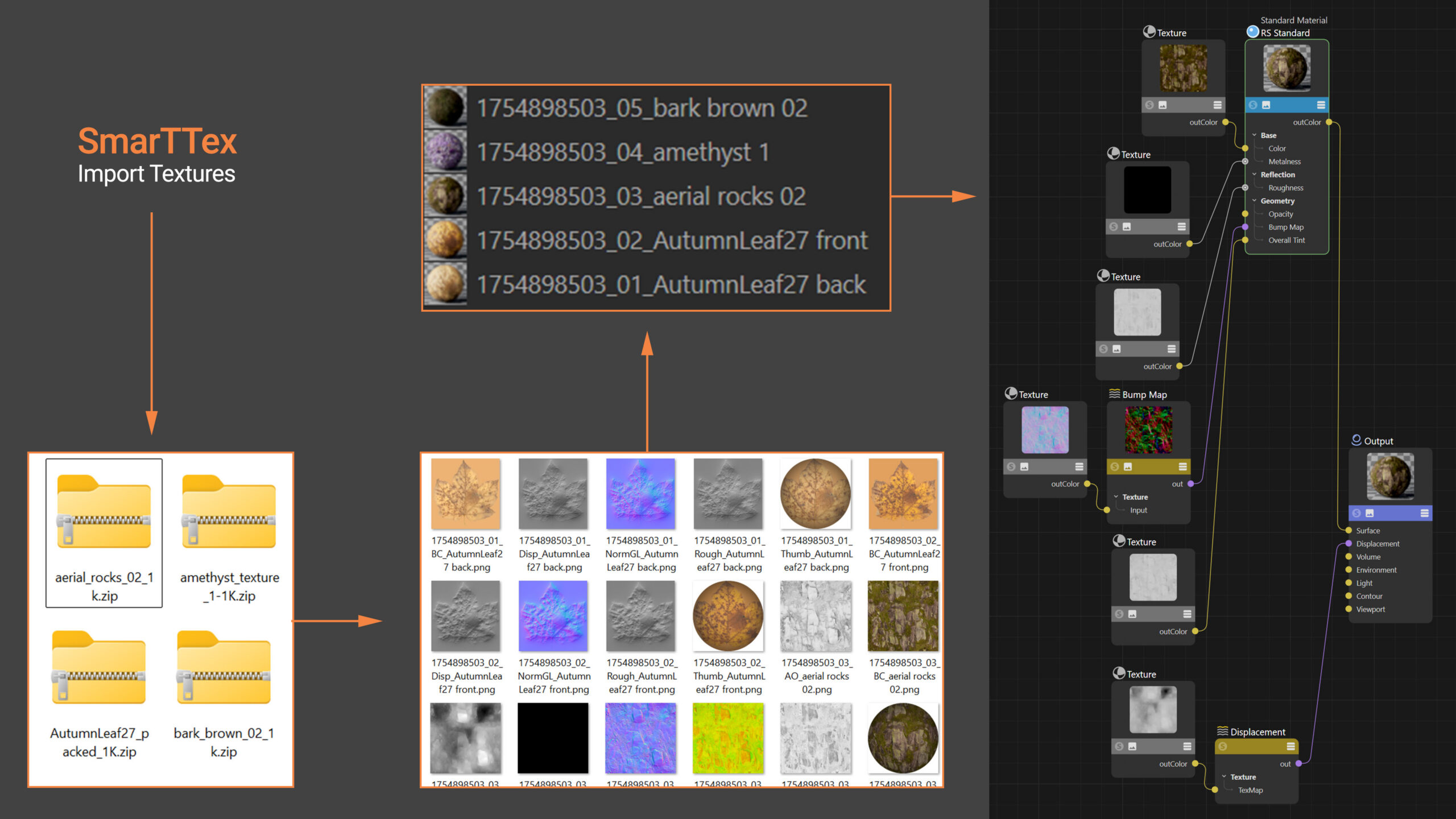
Mode 02: Import Textures
This mode groups and converts textures into the glTF pipeline workflow, automatically generating new materials. It also includes a range of processing options to handle different image types. Use this mode to import textures directly from a 3D scene or from external texture sets.
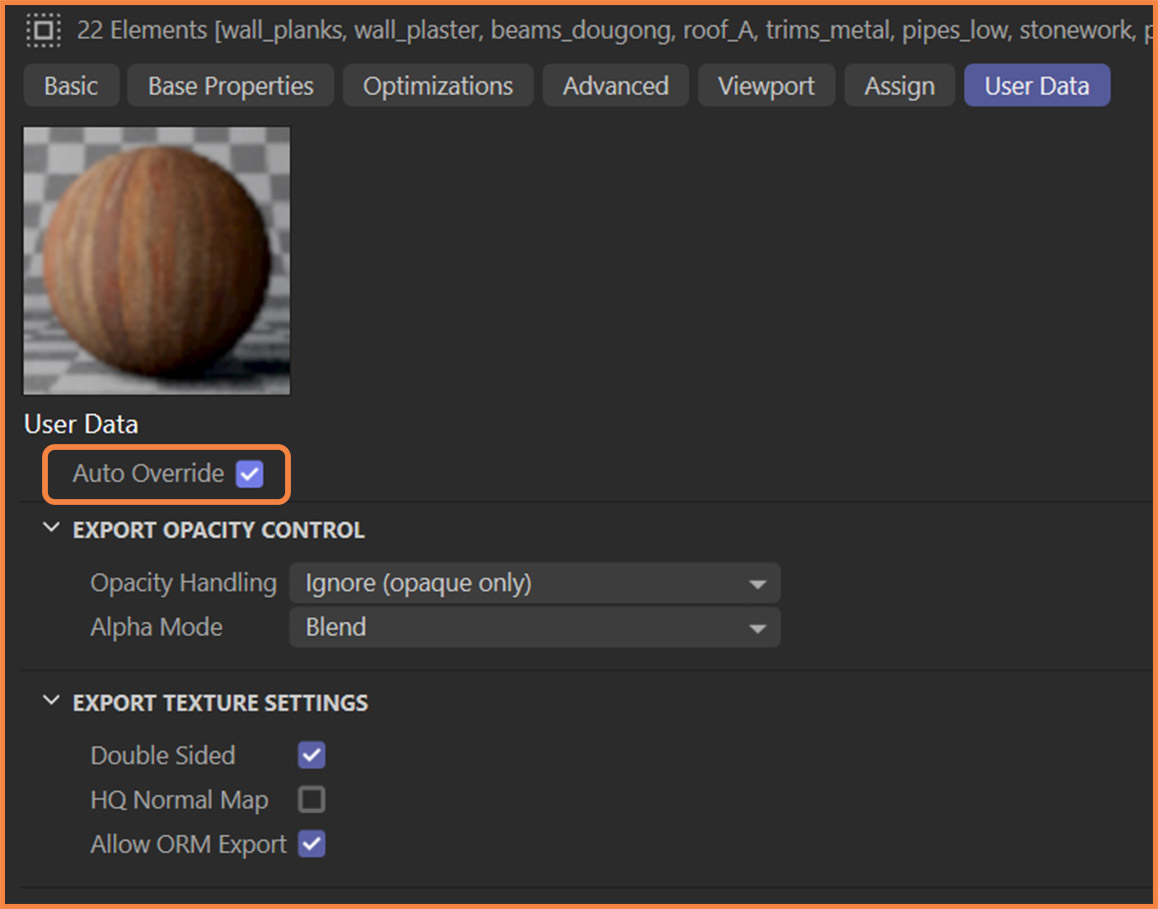
Note: Import Textures always runs as the second function. To skip specific materials, disable Auto Override in the material’s user data.
File Formats
The Baked Pixels plugin is built around an 8-bit PNG pipeline, ensuring seamless compatibility with the glTF format. All input images are automatically converted to PNG. On export, you can choose between JPG and WebP formats.
Supported input formats:
.png, .jpg, .jpeg, .tif, .tiff, .bmp, .webp, .gif, .ico, .ppm, .pgm, .pbm, .pnm, .exr, .zip
Grouping & Properties
Textures are grouped into material sets through multiple passes, including folder separation, file comparison, and property recognition. The system also predicts new property outputs and applies sequential, project-related naming, ensuring every texture has unique metadata to avoid database conflicts. Although you can place all files directly in the tex folder, it’s recommended to use subfolders. This initial separation helps minimize conflicts during large batch conversions.
Below is the list of how properties are detected. You can also use it to adjust texture names so they are recognized in a specific way. For example, to trigger a particular processing function.
| Map Type | SmarTTex Property | Recognized Property in Names |
|---|---|---|
| Base Color | BC | BaseColor, Color, Albedo, Diffuse, Alb, Dif, Col, Col1, baseColorTexture, diffTexture |
| Occlusion / Roughness / Metallic | ORM | ORM, RMA, ARM, metallicRoughness, metallicRoughnessTexture, m_ao_h_r, ao_r_m, o_r_m, a_r_m |
| Roughness | Rough | Roughness, Rgh, Smoothness, roughTexture, microRoughness, ReflR, NormRough |
| Normal (DirectX) | NormDX | NormalDX, nor_dx, norm_dx, normal_dx |
| Normal (OpenGL) | NormGL | Normal, Norm, NRM, N, NormalGL, normalTexture, nor_gl, norm_gl, normal_gl |
| Displacement | Disp | Displacement, Height, Disp, NormHeight |
| Bump | Bump | Bump, BumpMap |
| Ambient Occlusion | AO | AmbientOcclusion, AO, Occlusion, Occ, occlusionTexture |
| Emissive | Emis | Emissive, Emis, Emit, Glow, Illum, Emission, emissiveTexture |
| Specular | Spec | Specular, Spec, Refl, Reflect, Reflection |
| Glossiness | Gloss | Glossiness, Gloss, Shine |
| Metal-Rough | MR | MetalRough, MR |
| Variations | Var | VarA, VarB, VarC, VarD, VarE, VarF, BW, Var, Variation |
| Thumbnail / Preview | Thumb | Thumb, Thumbnail, Info, Preview |
| Cavity | Cav | Cavity, Cav, Crevice |
| Curvature | Curv | Curvature, Curv, Cu |
| Subsurface Scattering | SSS | SSS, Subsurface, Subsurface Scatter, Translucency |
| Thickness | Thick | Thickness, Thick, Depth |
| Transmission | Trans | Transmission, Trans, OpacityThin, Thin |
| Clear Coat | Coat | ClearCoat, Coat, CCMask |
| Anisotropy | Aniso | Anisotropy, Aniso |
| Anisotropy Angle | AnisoA | AnisoAngle, Flow, AnisoA |
| ID Map | ID | ID, ColorID, IDMap |
| Detail | Dtl | Detail, Dtl |
| Opacity / Alpha | Opac | Opacity, Opac, Op, Alpha, Mask, Trans |
| Metallic | Metal | Metallic, Metalness, Metal, Met, metalTexture |
Note: SmarTTex can process multiple textures, but only properties relevant to the metal–roughness workflow will be imported, and new materials will be created from those textures.
Naming Convention & Excluding Folders
Folders named env, hdr, or excl will be excluded from processing. It is recommended to keep backups of your original textures elsewhere, as the Baked Pixels plugin works in a destructive way.
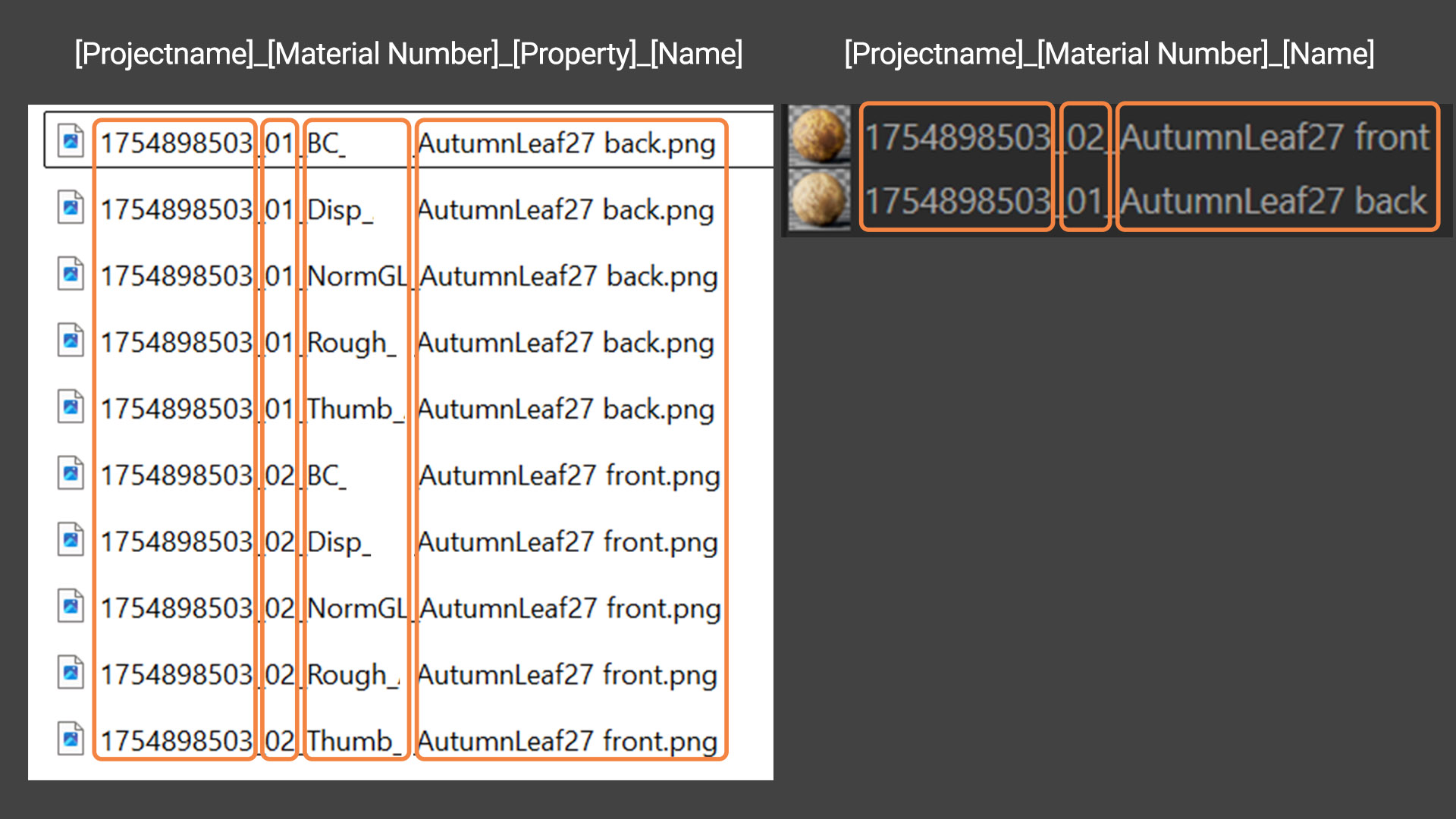
When textures are processed, they are renamed using the following structure: [projectname]_[materialnumber]_[property]_[materialname].png
Materials follow a similar structure: [projectname]_[materialnumber]_[materialname]
Note: Material names can be changed freely, but avoid unnecessary special characters. Underscores (_) in particular may cause issues. If detected by the pipeline, they will be automatically removed.
Auto Override
Each material includes an Auto Override option in its user data, which controls whether the material is processed in Cinema 4D. If the user data does not exist yet, run the Create User Data command first to generate it.